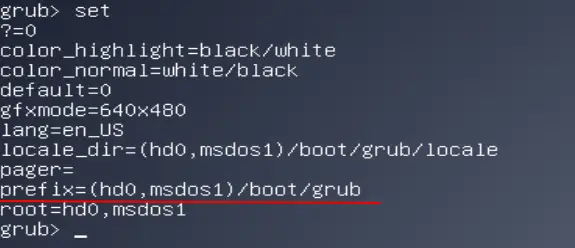
As GRUB 2's ability to fix boot problems has greatly improved over the original GRUB bootloader. This article provides you with information on available options for repairing GRUB 2 boot issues and specific instructions on how to use the GRUB 2 terminal. The instructions are written for GRUB 2.
How it looks?
There are basically three error messages or screens when GRUB fails to boot.
grub>: This is the screen mode you see when GRUB has found everything except the configurationn file. This file probably will be grub.conf.
grub rescue>: This is the mode when GRUB 2 is unable to find the GRUB folder or its contents are missing/corrupted. The GRUB 2 folder contains the menu, modules and stored environmental data.
GRUB: Just "GRUB" nothing else indicates GRUB 2 failed to find even the most basic information needed to boot the system.
These are the basic errors that may occur during booting. Although there are a few more errors that can be seen on the screen like frozen splash screen, Busybox or Initramfs: GRUB 2 began....
But each of the GRUB 2 failure modes can be corrected either from GRUB 2 terminal or the Live boot CD or DVD of the distro, there are also 3rd party rescue tools available out there.
Basic commands available.
These are the commands that can be used when you enter the GRUB 2 terminl mode by pressing "c".
boot (Initiate the boot, also F10 or CTRL-x)
cat (view the contents of config or txt files; cat (hd0,1)/boot/grub/grub.cfg)
configfile (Load a GRUB 2 configuration file such as grub.cfg; configfile (hd0,5)/boot/grub/grub.cfg.)
initrd (Loads the initrd.img, necessary for booting; initrd (hd0,5)/initrd.img.)
insmod (Loads a module; insmod (hd0,5)/boot/grub/normal.mod, or insmod normal.)
linux (Loads the kernel; insmod /vmlinuz root=(hd0,5) ro.)
loop (Mount a file as a device; loopback loop (hd0,2)/iso/my.iso.)
ls (lists the contents of a partition/folder; ls, ls /boot/grub, ls (hd0,5)/, ls (hd0,5)/boot.)
lsmod (List loaded modules.)
normal (Activate the normal module, if loaded.)
search (Search for a device. Type help search for the available options.)
set (Review current settings, or set XXX to set a variable such as colors, prefix, root.)
vbeinfo (Display GRUB 2 available resolutions.)
The Rescue Shell.
If you get a rescue shell, this usually means that GRUB failed to load the "normal" module for some reason. It may be possible to work around this temporarily: for instance, if the reason for the failure is that "prefix" is wrong (perhaps it refers to the wrong device, or perhaps the path to "/boot/grub" was not correctly made relative to the device), then you can correct this and enter normal mode manually: Inspect the current prefix (and other preset variables):
set
You will probably have an output more or less like this:
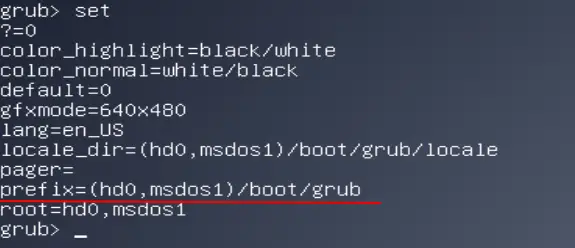
Your output may differ but you get the information required. Find out which devices are available:
ls

Set to the correct value, which might be something like this:
set prefix=(hd0,1)/grub
(this has to be done according to your own drive name)
set root=(hd0,1)
(this has to be performed according to your own drive name.)
insmod normal
normal
The above commands will get you out of the rescue mode to the normal terminal mode. In the terminal mode you have more commands with increased functionality.
After the above commands you can go ahead and start the rest of the settings.
insmod linux
* linux /vmlinuz root=/dev/sdXY ro
(if this doesn't work try this)
linux /boot/vmlinuz-3.2.0-14-generic root=/dev/sda1 ro
(optional)
initrd /initrd.img
(Selects the initrd image.)
boot
After Booting the system.
Update the GRUB config file.
sudo update-grub
Reinstallation of Grub on the device:
sudo grub-install /dev/sdX
This should be it for the rescue part and your system should be good and running. If not you can save all your trouble by using Boot Repair. This is the tool used to repair your complete boot menu. It can be downloaded directly and used as a Live Boot CD or DVD.
Here is the download link.
 fixbootsplash.tar.gz