Showing posts with label Load Balancer. Show all posts

Saturday, December 23, 2017

Networking Bonding in RHEL/CentOS 7: Combining multiple NICs into one

Networking Bonding in RHEL/CentOS 7: Combining multiple NICs into one

When hosting a successful & busy websites or operating a critical server, high availability & redundancy are major factors to consider. To achieve high availability & redundancy, backup of the server & server clusters are prepared. One other thing that is used for HA/redundancy is Network Bonding.

Network Bonding refers to combining of more than one NIC into a single NIC for the purpose of HA/redundancy or load balancing. When network bonding is achieved and one of the NICs fail, the load will be transferred to next NIC in the bonding or we can even also configure it for load balancing.
In this tutorial, we are going to create network bonding for two interfaces on RHEL/CentOS 7 servers.

Installation

To create a network bond between NICs, we will require bonding module. To load the bonding module into the system, run
$ modprobe bonding
Once the module has been loaded, we will create a file for bonding interface ‘ifcfg-bind0’ in ‘/etc/sysconfig/network-scripts’ directory.

Configuring Bond interface

Goto ‘/etc/sysconfig/network-scripts’ & create bond file with following content,
$ cd /etc/sysconfig/network-scripts
$ vi ifcfg-bond0
DEVICE=bond0
TYPE=Bond
NAME=bond0
BONDING_MASTER=yes
BOOTPROTO=none
ONBOOT=yes
IPADDR=192.168.0.100
NETMASK=255.255.255.0
GATEWAY=192.168.0.1
BONDING_OPTS=”mode=5 miimon=100″
Here, mode=5 means network bond will provide fault tolerance & load balancing as well. Details of all available modes for network bonding are mentioned below,
mode=0 (Balance Round Robin)— round-robin mode for fault tolerance and load balancing.
mode=1 (Active backup)— Sets active-backup mode for fault tolerance.
mode=2 (Balance XOR)— Sets an XOR (exclusive-or) mode for fault tolerance and load balancing.
mode=3 (Broadcast)— Sets a broadcast mode for fault tolerance. All transmissions are sent on all slave interfaces.
mode=4 (802.3ad)— Sets an IEEE 802.3ad dynamic link aggregation mode. Creates aggregation groups that share the same speed & duplex settings.
mode=5 (Balance TLB)— Sets a Transmit Load Balancing (TLB) mode for fault tolerance & load balancing.
mode=6 (Balance ALB)— Sets an Active Load Balancing (ALB) mode for fault tolerance & load balancing.
Next step is to configure network interfaces i.e. ifcfg-en0s3 &en0s5 , for the bonding.

Configuring network interfaces

Make changes to the both interfaces file & add parameters “MASTER” & “SLAVE” to it, so that it looks like,
TYPE=Ethernet
BOOTPROTO=none
DEVICE=enp0s3
ONBOOT=yes
HWADDR=”23:03:56:bh:56:9g”
MASTER=bond0
SLAVE=yes
Save both files & restart the networking services on the system,
$ systemctl restart network
We can now run ‘ifconfig’ command to verify our newly created bonding interface or we can also check the bonding by running the following,
$ cat /proc/net/bonding/bond0
This will provide complete information about bonding interface.

Testing fault tolerance

To test if the network bonding is working or not, bring one of the network interfaces down. To do so, run
$ ifdown en0s3
& verify by making a http or ssh request to the server via the bonding interface IP address, network should be working just fine. Further we can also check which interface is working & which is down by running the above command i.e
$ cat /proc/net/bonding/bond0

This concludes our tutorial on network bonding. 

Saturday, July 2, 2016

[Quick Install: HA Proxy/ Loadbalancer]: How to configure HTTP load balancer with HAProxy on Linux

How to configure HTTP load balancer with HAProxy on Linux


Increased demand on web based applications and services are putting more and more weight on the shoulders of IT administrators. When faced with unexpected traffic spikes, organic traffic growth, or internal challenges such as hardware failures and urgent maintenance, your web application must remain available, no matter what. Even modern devops and continuous delivery practices can threaten the reliability and consistent performance of your web service.
Unpredictability or inconsistent performance is not something you can afford. But how can we eliminate these downsides? In most cases a proper load balancing solution will do the job. And today I will show you how to set up HTTP load balancer using HAProxy.

What is HTTP load balancing?

HTTP load balancing is a networking solution responsible for distributing incoming HTTP or HTTPS traffic among servers hosting the same application content. By balancing application requests across multiple available servers, a load balancer prevents any application server from becoming a single point of failure, thus improving overall application availability and responsiveness. It also allows you to easily scale in/out an application deployment by adding or removing extra application servers with changing workloads.

Where and when to use load balancing?

As load balancers improve server utilization and maximize availability, you should use it whenever your servers start to be under high loads. Or if you are just planning your architecture for a bigger project, it's a good habit to plan usage of load balancer upfront. It will prove itself useful in the future when you need to scale your environment.

What is HAProxy?

HAProxy is a popular open-source load balancer and proxy for TCP/HTTP servers on GNU/Linux platforms. Designed in a single-threaded event-driven architecture, HAproxy is capable of handling 10G NIC line rate easily, and is being extensively used in many production environments. Its features include automatic health checks, customizable load balancing algorithms, HTTPS/SSL support, session rate limiting, etc.

What are we going to achieve in this tutorial?

In this tutorial, we will go through the process of configuring a HAProxy-based load balancer for HTTP web servers.

Prerequisites

You will need at least one, or preferably two web servers to verify functionality of your load balancer. We assume that backend HTTP web servers are already up and running.

Install HAProxy on Linux

For most distributions, we can install HAProxy using your distribution's package manager.

Install HAProxy on Debian

In Debian we need to add backports for Wheezy. To do that, please create a new file called "backports.list" in /etc/apt/sources.list.d, with the following content:
1
deb http://cdn.debian.net/debian wheezy­backports main
Refresh your repository data and install HAProxy.
# apt­ get update
# apt ­get install haproxy

Install HAProxy on Ubuntu

# apt ­get install haproxy

Install HAProxy on CentOS and RHEL

# yum install haproxy

Configure HAProxy

In this tutorial, we assume that there are two HTTP web servers up and running with IP addresses 192.168.100.2 and 192.168.100.3. We also assume that the load balancer will be configured at a server with IP address 192.168.100.4.
To make HAProxy functional, you need to change a number of items in /etc/haproxy/haproxy.cfg. These changes are described in this section. In case some configuration differs for different GNU/Linux distributions, it will be noted in the paragraph.

1. Configure Logging

One of the first things you should do is to set up proper logging for your HAProxy, which will be useful for future debugging. Log configuration can be found in the global section of /etc/haproxy/haproxy.cfg. The following are distro-specific instructions for configuring logging for HAProxy.
CentOS or RHEL:
To enable logging on CentOS/RHEL, replace:
1
log         127.0.0.1 local2
with:
1
log         127.0.0.1 local0
The next step is to set up separate log files for HAProxy in /var/log. For that, we need to modify our current rsyslog configuration. To make the configuration simple and clear, we will create a new file called haproxy.conf in /etc/rsyslog.d/ with the following content.
1
2
3
4
5
6
$ModLoad imudp
$UDPServerRun 514 
$template Haproxy,"%msg%\n"
local0.=info ­/var/log/haproxy.log;Haproxy
local0.notice ­/var/log/haproxy­status.log;Haproxy
local0.* ~
This configuration will separate all HAProxy messages based on the $template to log files in /var/log. Now restart rsyslog to apply the changes.
# service rsyslog restart
Debian or Ubuntu:
To enable logging for HAProxy on Debian or Ubuntu, replace:
1
2
log /dev/log        local0
log /dev/log        local1 notice
with:
1
log         127.0.0.1 local0
Next, to configure separate log files for HAProxy, edit a file called haproxy.conf (or 49-haproxy.conf in Debian) in /etc/rsyslog.d/ with the following content.
1
2
3
4
5
6
$ModLoad imudp
$UDPServerRun 514 
$template Haproxy,"%msg%\n"
local0.=info ­/var/log/haproxy.log;Haproxy
local0.notice ­/var/log/haproxy­status.log;Haproxy
local0.* ~
This configuration will separate all HAProxy messages based on the $template to log files in /var/log. Now restart rsyslog to apply the changes.
# service rsyslog restart

2. Setting Defaults

The next step is to set default variables for HAProxy. Find the defaults section in /etc/haproxy/haproxy.cfg, and replace it with the following configuration.
1
2
3
4
5
6
7
8
9
10
11
defaults
log     global
mode    http
option  httplog
option  dontlognull
retries 3
option redispatch
maxconn 20000
contimeout      5000
clitimeout      50000
srvtimeout      50000
The configuration stated above is recommended for HTTP load balancer use, but it may not be the optimal solution for your environment. In that case, feel free to explore HAProxy man pages to tweak it.

3. Webfarm Configuration

Webfarm configuration defines the pool of available HTTP servers. Most of the settings for our load balancer will be placed here. Now we will create some basic configuration, where our nodes will be defined. Replace all of the configuration from frontend section until the end of file with the following code:
1
2
3
4
5
6
7
8
9
10
11
12
listen webfarm *:80
       mode http
       stats enable
       stats uri /haproxy?stats
       stats realm Haproxy\ Statistics
       stats auth haproxy:stats
       balance roundrobin
       cookie LBN insert indirect nocache
       option httpclose
       option forwardfor
       server web01 192.168.100.2:80 cookie node1 check
       server web02 192.168.100.3:80 cookie node2 check
The line "listen webfarm *:80" defines on which interfaces our load balancer will listen. For the sake of the tutorial, I've set that to "*" which makes the load balancer listen on all our interfaces. In a real world scenario, this might be undesirable and should be replaced with an interface that is accessible from the internet.
1
2
3
4

stats enable
stats uri /haproxy?stats
stats realm Haproxy\ Statistics
stats auth haproxy:stats
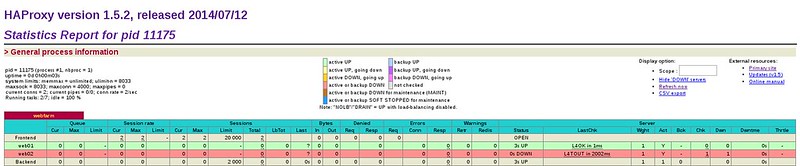
The above settings declare that our load balancer statistics can be accessed on http://<load-balancer-IP>/haproxy?stats. The access is secured with a simple HTTP authentication with login name "haproxy" and password "stats". These settings should be replaced with your own credentials. If you don't need to have these statistics available, then completely disable them.
Here is an example of HAProxy statistics.

The line "balance roundrobin" defines the type of load balancing we will use. In this tutorial we will use simple round robin algorithm, which is fully sufficient for HTTP load balancing. HAProxy also offers other types of load balancing:
  • leastconn:­ gives connections to the server with the lowest number of connections.
  • source: hashes the source IP address, and divides it by the total weight of the running servers to decide which server will receive the request.
  • uri: the left part of the URI (before the question mark) is hashed and divided by the total weight of the running servers. The result determines which server will receive the request.
  • url_param: the URL parameter specified in the argument will be looked up in the query string of each HTTP GET request. You can basically lock the request using crafted URL to specific load balancer node.
  • hdr(name): the HTTP header <name> will be looked up in each HTTP request and directed to specific node.
The line "cookie LBN insert indirect nocache" makes our load balancer store persistent cookies, which allows us to pinpoint which node from the pool is used for a particular session. These node cookies will be stored with a defined name. In our case, I used "LBN", but you can specify any name you like. The node will store its string as a value for this cookie.
1
2
server web01 192.168.100.2:80 cookie node1 check
server web02 192.168.100.3:80 cookie node2 check
The above part is the definition of our pool of web server nodes. Each server is represented with its internal name (e.g., web01, web02). IP address, and unique cookie string. The cookie string can be defined as anything you want. I am using simple node1, node2 ... node(n).

Start HAProxy

When you are done with the configuration, it's time to start HAProxy and verify that everything is working as intended.

Start HAProxy on Centos/RHEL

Enable HAProxy to be started after boot and turn it on using:
# chkconfig haproxy on
# service haproxy start
And of course don't forget to enable port 80 in the firewall as follows.
Firewall on CentOS/RHEL 7:
# firewall­cmd ­­permanent ­­zone=public ­­add­port=80/tcp
# firewall­cmd ­­reload
Firewall on CentOS/RHEL 6:
Add following line into section ":OUTPUT ACCEPT" of /etc/sysconfig/iptables:
1
­A INPUT ­m state ­­state NEW ­m tcp ­p tcp ­­dport 80 ­j ACCEPT
and restart iptables:
# service iptables restart

Start HAProxy on Debian

Start HAProxy with:
# service haproxy start
Don't forget to enable port 80 in the firewall by adding the following line into /etc/iptables.up.rules:
1
­A INPUT ­p tcp ­­dport 80 ­j ACCEPT

Start HAProxy on Ubuntu

Enable HAProxy to be started after boot by setting "ENABLED" option to "1" in /etc/default/haproxy:
1
ENABLED=1
Start HAProxy:
# service haproxy start
and enable port 80 in the firewall:
# ufw allow 80

Test HAProxy

To check whether HAproxy is working properly, we can do the following.
First, prepare test.php file with the following content:
1
2
3
4
5
<?php
header('Content-Type: text/plain');
echo "Server IP: ".$_SERVER['SERVER_ADDR'];
echo "\nX-Forwarded-for: ".$_SERVER['HTTP_X_FORWARDED_FOR'];
?>
This PHP file will tell us which server (i.e., load balancer) forwarded the request, and what backend web server actually handled the request.
Place this PHP file in the root directory of both backend web servers. Now use curl command to fetch this PHP file from the load balancer (192.168.100.4).
$ curl http://192.168.100.4/test.php
When we run this command multiple times, we should see the following two outputs alternate (due to the round robin algorithm).
Server IP: 192.168.100.2
X-Forwarded-for: 192.168.100.4
Server IP: 192.168.100.3
X-Forwarded-for: 192.168.100.4
If we stop one of the two backend web servers, the curl command should still work, directing requests to the other available web server.

Summary

By now you should have a fully operational load balancer that supplies your web nodes with requests in round robin mode. As always, feel free to experiment with the configuration to make it more suitable for your infrastructure. I hope this tutorial helped you to make your web projects more resistant and available.
As most of you already noticed, this tutorial contains settings for only one load balancer. Which means that we have just replaced one single point of failure with another. In real life scenarios you should deploy at least two or three load balancers to cover for any failures that might happen, but that is out of the scope of this tutorial right now.

Wednesday, March 11, 2015

[Quick Install]: Linux Basics: Create Network Bonding On Debian 7

Linux Basics: Create Network Bonding On Debian 7

What is network bonding?
Network bonding is a method of combining (joining) two or more network interfaces together into a single interface. It will increase the network throughput, bandwidth and give redundancy. If one interface is down or unplugged, the other one will keep the network traffic alive. Network bonding can be used in situations wherever you need redundancy, fault tolerance or load balancing networks.
Linux allows us to bond multiple network interfaces into single interface using a special kernel module named bonding. The Linux bonding driver provides a method for combining multiple network interfaces into a single logical “bonded” interface. The behavior of the bonded interfaces depends upon the mode; generally speaking, modes provide either hot standby or load balancing services. Additionally, link integrity monitoring may be performed.
Types of Network Bonding
According the to the official documentation, here is the types of network bonding modes.
mode=0 (balance-rr)
Round-robin policy: It the default mode. It transmits packets in sequential order from the first available slave through the last. This mode provides load balancing and fault tolerance.
mode=1 (active-backup)
Active-backup policy: In this mode, only one slave in the bond is active. The other one will become active, only when the active slave fails. The bond’s MAC address is externally visible on only one port (network adapter) to avoid confusing the switch. This mode provides fault tolerance.
mode=2 (balance-xor)
XOR policy: Transmit based on [(source MAC address XOR’d with destination MAC address) modulo slave count]. This selects the same slave for each destination MAC address. This mode provides load balancing and fault tolerance.
mode=3 (broadcast)
Broadcast policy: transmits everything on all slave interfaces. This mode provides fault tolerance.
mode=4 (802.3ad)
IEEE 802.3ad Dynamic link aggregation. Creates aggregation groups that share the same speed and duplex settings. Utilizes all slaves in the active aggregator according to the 802.3ad specification.
Prerequisites:
- Ethtool support in the base drivers for retrieving the speed and duplex of each slave.
– A switch that supports IEEE 802.3ad Dynamic link aggregation. Most switches will require some type of configuration to enable 802.3ad mode.
mode=5 (balance-tlb)
Adaptive transmit load balancing: channel bonding that does not require any special switch support. The outgoing traffic is distributed according to the current load (computed relative to the speed) on each slave. Incoming traffic is received by the current slave. If the receiving slave fails, another slave takes over the MAC address of the failed receiving slave.
Prerequisite:
- Ethtool support in the base drivers for retrieving the speed of each slave.
mode=6 (balance-alb)
Adaptive load balancing: includes balance-tlb plus receive load balancing (rlb) for IPV4 traffic, and does not require any special switch support. The receive load balancing is achieved by ARP negotiation. The bonding driver intercepts the ARP Replies sent by the local system on their way out and overwrites the source hardware address with the unique hardware address of one of the slaves in the bond such that different peers use different hardware addresses for the server.
Setup Network Bonding On Debian 7 / Ubuntu 13.10 Desktop
In this handy tutorial let us see how to setup network bonding on Debian 7. Though it was tested on Debian 7, it should work on Ubuntu and its derivatives.
We need atleast two or more network cards.
I have three network interfaces, namely eth0, eth1 and eth2 in my Debian 7 LXDE desktop. Let us combine two NICs (eth1 and eth2) and make them into one NIC named bond0.
Install Bonding Kernel Module
First, we have to install bonding kernel module using the command:
# apt-get install ifenslave-2.6
Before going further, stop networking service.
# /etc/init.d/networking stop
Warning: You should not enter the above command over SSH connection.
Configure Bond0 Interface
First, let us create a bond0 configuration file as shown below.
Go to the directory where Debian/Ubuntu stores the network configuration files. By default, Debian and its derivatives stores the network configuration files under /etc/network/ directory.
Create bond0 configuration file under the above mentioned directory.
# vi /etc/network/interfaces
Add the following lines marked in red color to create network bond for eth1 and eth2.
# This file describes the network interfaces available on your system
# and how to activate them. For more information, see interfaces(5).

# The loopback network interface
auto lo
iface lo inet loopback

# The first network bond
auto bond0
iface bond0 inet static
address 192.168.1.200
netmask 255.255.255.0
gateway 192.168.1.1
slaves eth1 eth2
bond-mode 1
bond-miimon 100
bond_downdelay 200
bond_updelay 200
Save and close file.
Note: Here we will be configuring mode1(active-backup). 192.168.1.200 is bond0 IP address.
Next we have to load up the bond0 interface into the kernel. To do that, create a new file /etc/modprobe.d/bonding.conf,
# vi /etc/modprobe.d/bonding.conf
Add the following line in it.
alias bond0 bonding
options bonding mode=1 arp_interval=2000 arp_ip_target=192.168.1.1
Warning: Without this file, you’ll get warning message when you restart network service. Here 192.168.1.1 is my router(gateway) ip address. Save and close the file.
Now let us enable the bonding kernel module, using the command:
# modprobe -v options bonding mode=1 arp_interval=2000 arp_ip_target=192.168.1.1
Next Start/Restart network service to take effect the changes.
# service network start
Test Network Bonding
Now enter the following command to check whether the bonding interface bond0 is up and running:
# cat /proc/net/bonding/bond0
Sample output:
Ethernet Channel Bonding Driver: v3.7.1 (April 27, 2011)

Bonding Mode: fault-tolerance (active-backup)
Primary Slave: None
Currently Active Slave: eth1
MII Status: up
MII Polling Interval (ms): 100
Up Delay (ms): 200
Down Delay (ms): 200

Slave Interface: eth1
MII Status: up
Speed: 1000 Mbps
Duplex: full
Link Failure Count: 0
Permanent HW addr: 08:00:27:16:07:6a
Slave queue ID: 0

Slave Interface: eth2
MII Status: up
Speed: 1000 Mbps
Duplex: full
Link Failure Count: 0
Permanent HW addr: 08:00:27:60:18:bb
Slave queue ID: 0
As you see in the above output, the bond0 interface is up and running and it is configured as active-backup(mode1) mode. In this mode, only one slave in the bond is active. The other one will become active, only when the active slave fails.
To view the list of network interfaces and their IP address, enter the following command:
# ifconfig
Sample output:
bond0     Link encap:Ethernet  HWaddr 08:00:27:16:07:6a  
          inet addr:192.168.1.200  Bcast:192.168.1.255  Mask:255.255.255.0
          inet6 addr: fe80::a00:27ff:fe16:76a/64 Scope:Link
          UP BROADCAST RUNNING MASTER MULTICAST  MTU:1500  Metric:1
          RX packets:114 errors:0 dropped:31 overruns:0 frame:0
          TX packets:197 errors:0 dropped:0 overruns:0 carrier:0
          collisions:0 txqueuelen:0 
          RX bytes:14269 (13.9 KiB)  TX bytes:29286 (28.5 KiB)

eth0      Link encap:Ethernet  HWaddr 08:00:27:ac:65:e9  
          inet addr:192.168.1.102  Bcast:192.168.1.255  Mask:255.255.255.0
          inet6 addr: fe80::a00:27ff:feac:65e9/64 Scope:Link
          UP BROADCAST RUNNING MULTICAST  MTU:1500  Metric:1
          RX packets:1164 errors:0 dropped:0 overruns:0 frame:0
          TX packets:42 errors:0 dropped:0 overruns:0 carrier:0
          collisions:0 txqueuelen:1000 
          RX bytes:89712 (87.6 KiB)  TX bytes:8706 (8.5 KiB)

eth1      Link encap:Ethernet  HWaddr 08:00:27:16:07:6a  
          UP BROADCAST RUNNING SLAVE MULTICAST  MTU:1500  Metric:1
          RX packets:77 errors:0 dropped:0 overruns:0 frame:0
          TX packets:197 errors:0 dropped:0 overruns:0 carrier:0
          collisions:0 txqueuelen:1000 
          RX bytes:11459 (11.1 KiB)  TX bytes:29286 (28.5 KiB)

eth2      Link encap:Ethernet  HWaddr 08:00:27:16:07:6a  
          UP BROADCAST RUNNING SLAVE MULTICAST  MTU:1500  Metric:1
          RX packets:37 errors:0 dropped:31 overruns:0 frame:0
          TX packets:0 errors:0 dropped:0 overruns:0 carrier:0
          collisions:0 txqueuelen:1000 
          RX bytes:2810 (2.7 KiB)  TX bytes:0 (0.0 B)

lo        Link encap:Local Loopback  
          inet addr:127.0.0.1  Mask:255.0.0.0
          inet6 addr: ::1/128 Scope:Host
          UP LOOPBACK RUNNING  MTU:16436  Metric:1
          RX packets:0 errors:0 dropped:0 overruns:0 frame:0
          TX packets:0 errors:0 dropped:0 overruns:0 carrier:0
          collisions:0 txqueuelen:0 
          RX bytes:0 (0.0 B)  TX bytes:0 (0.0 B)
As per the above output, bond0 is configured as master; eth1 and eth2 are configured as a slave.
Source & Reference Links:


[Quick Install]: Linux Basics: Create Network Bonding On Ubuntu 14.10

Linux Basics: Create Network Bonding On Ubuntu 14.10

What is Network bonding?

Network bonding is a method of combining (joining) two or more network interfaces together into a single interface. It will increase the network throughput, bandwidth and will give redundancy. If one interface is down or unplugged, the other one will keep the network traffic up and alive. Network bonding can be used in situations wherever you need redundancy, fault tolerance or load balancing networks.
Linux allows us to bond multiple network interfaces into single interface using a special kernel module named bonding. The Linux bonding driver provides a method for combining multiple network interfaces into a single logical “bonded” interface. The behaviour of the bonded interfaces depends upon the mode; generally speaking, modes provide either hot standby or load balancing services. Additionally, link integrity monitoring, may be performed.

Types of Network Bonding

mode=0 (balance-rr)

  • Round-robin policy: It the default mode. It transmits packets in sequential order from the first available slave through the last. This mode provides load balancing and fault tolerance.

mode=1 (active-backup)

  • Active-backup policy: In this mode, only one slave in the bond is active. The other one will become active, only when the active slave fails. The bond’s MAC address is externally visible on only one port (network adapter) to avoid confusing the switch. This mode provides fault tolerance.

mode=2 (balance-xor)

  • XOR policy: Transmit based on [(source MAC address XOR’d with destination MAC address) modulo slave count]. This selects the same slave for each destination MAC address. This mode provides load balancing and fault tolerance.

mode=3 (broadcast)

  • Broadcast policy: transmits everything on all slave interfaces. This mode provides fault tolerance.

mode=4 (802.3ad)

  • IEEE 802.3ad Dynamic link aggregation. Creates aggregation groups that share the same speed and duplex settings. Utilizes all slaves in the active aggregator according to the 802.3ad specification.
Prerequisites:
- Ethtool support in the base drivers for retrieving the speed and duplex of each slave.
– A switch that supports IEEE 802.3ad Dynamic link aggregation. Most switches will require some type of configuration to enable 802.3ad mode.

mode=5 (balance-tlb)

  • Adaptive transmit load balancing: channel bonding that does not require any special switch support. The outgoing traffic is distributed according to the current load (computed relative to the speed) on each slave. Incoming traffic is received by the current slave. If the receiving slave fails, another slave takes over the MAC address of the failed receiving slave.
Prerequisite:
- Ethtool support in the base drivers for retrieving the speed of each slave.

mode=6 (balance-alb)

  • Adaptive load balancing: includes balance-tlb plus receive load balancing (rlb) for IPV4 traffic, and does not require any special switch support. The receive load balancing is achieved by ARP negotiation. The bonding driver intercepts the ARP Replies sent by the local system on their way out and overwrites the source hardware address with the unique hardware address of one of the slaves in the bond such that different peers use different hardware addresses for the server.

Setting up Network Bonding on Ubuntu 14.10

I tested this how-to on Ubuntu 14.10, and it worked well.
We need atleast two network cards. You are free to use n number of NICs.
I have three network interfaces, namely eth0, eth1 and eth2 in my Ubuntu 14.10 desktop. Let us combine two NICs (eth1 and eth2) and make them into one NIC named bond0.

Install Bonding Kernel Module

The following command should be performed with root user privileges.
sudo su
First, we have to install bonding kernel module using the command:
apt-get install ifenslave-2.6
Now, we have to make sure that the correct kernel module bonding is present, and loaded at boot time.
Edit /etc/modules file,
cat /etc/modules
Add “bonding” at the end.
# /etc/modules: kernel modules to load at boot time.
#
# This file contains the names of kernel modules that should be loaded
# at boot time, one per line. Lines beginning with "#" are ignored.
# Parameters can be specified after the module name.

lp
rtc
bonding
Now, stop networking service.
/etc/init.d/networking stop
Warning: You should not enter the above command over SSH connection.
Then load the bonding kernel module:
sudo modprobe bonding

Configure Bond0 Interface

First, let us create a bond0 configuration file as shown below.
Go to the directory where Debian/Ubuntu stores the network configuration files. By default, Debian and its derivatives stores the network configuration files under /etc/network/ directory.
Create bond0 configuration file under the above mentioned directory.
vi /etc/network/interfaces
Add the following lines marked in red color to create network bond for eth1 and eth2.
# interfaces(5) file used by ifup(8) and ifdown(8)
auto lo
iface lo inet loopback

#eth1 configuration
auto eth1
iface eth1 inet manual
bond-master bond0
bond-primary eth1

#eth2 configuration
auto eth2
iface eth2 inet manual
bond-master bond0

# Bonding eth1 & eth2 to create bond0 NIC
auto bond0
iface bond0 inet static
address 192.168.1.200
gateway 192.168.1.1
netmask 255.255.255.0
bond-mode active-backup
bond-miimon 100
bond-slaves none
Save and close file.
Note: Here we will be configuring active-backup mode. 192.168.1.200 is bond0 IP address.
Next Start/Restart network service to take effect the changes.
/etc/init.d/networking start
Bring up bond0:
ifup bond0
Note: If you have any problems while bringing up bond0, restart and check again.

Test Network Bonding

Now enter the following command to check whether the bonding interface bond0 is up and running:
cat /proc/net/bonding/bond0
Sample output:
Ethernet Channel Bonding Driver: v3.7.1 (April 27, 2011)

Bonding Mode: fault-tolerance (active-backup)
Primary Slave: eth1 (primary_reselect always)
Currently Active Slave: eth1
MII Status: up
MII Polling Interval (ms): 100
Up Delay (ms): 0
Down Delay (ms): 0

Slave Interface: eth1
MII Status: up
Speed: 1000 Mbps
Duplex: full
Link Failure Count: 0
Permanent HW addr: 08:00:27:33:6e:fc
Slave queue ID: 0

Slave Interface: eth2
MII Status: up
Speed: 1000 Mbps
Duplex: full
Link Failure Count: 0
Permanent HW addr: 08:00:27:7c:b8:02
Slave queue ID: 0
As you see in the above output, the bond0 interface is up and running and it is configured as active-backup(mode1) mode. In this mode, only one slave in the bond is active. The other one will become active, only when the active slave fails.
To view the list of network interfaces and their IP address, enter the following command:
ifconfig
Sample output:
bond0     Link encap:Ethernet  HWaddr 08:00:27:33:6e:fc  
          inet addr:192.168.1.200  Bcast:192.168.1.255  Mask:255.255.255.0
          inet6 addr: fe80::a00:27ff:fe33:6efc/64 Scope:Link
          UP BROADCAST RUNNING MASTER MULTICAST  MTU:1500  Metric:1
          RX packets:1341 errors:0 dropped:181 overruns:0 frame:0
          TX packets:137 errors:0 dropped:0 overruns:0 carrier:0
          collisions:0 txqueuelen:0 
          RX bytes:943994 (943.9 KB)  TX bytes:10399 (10.3 KB)

eth0      Link encap:Ethernet  HWaddr 08:00:27:09:48:87  
          inet addr:192.168.1.107  Bcast:192.168.1.255  Mask:255.255.255.0
          inet6 addr: fe80::a00:27ff:fe09:4887/64 Scope:Link
          UP BROADCAST RUNNING MULTICAST  MTU:1500  Metric:1
          RX packets:957 errors:0 dropped:0 overruns:0 frame:0
          TX packets:829 errors:0 dropped:0 overruns:0 carrier:0
          collisions:0 txqueuelen:1000 
          RX bytes:897369 (897.3 KB)  TX bytes:184921 (184.9 KB)

eth1      Link encap:Ethernet  HWaddr 08:00:27:33:6e:fc  
          UP BROADCAST RUNNING SLAVE MULTICAST  MTU:1500  Metric:1
          RX packets:1143 errors:0 dropped:0 overruns:0 frame:0
          TX packets:137 errors:0 dropped:0 overruns:0 carrier:0
          collisions:0 txqueuelen:1000 
          RX bytes:916683 (916.6 KB)  TX bytes:10399 (10.3 KB)

eth2      Link encap:Ethernet  HWaddr 08:00:27:33:6e:fc  
          UP BROADCAST RUNNING SLAVE MULTICAST  MTU:1500  Metric:1
          RX packets:198 errors:0 dropped:181 overruns:0 frame:0
          TX packets:0 errors:0 dropped:0 overruns:0 carrier:0
          collisions:0 txqueuelen:1000 
          RX bytes:27311 (27.3 KB)  TX bytes:0 (0.0 B)

lo        Link encap:Local Loopback  
          inet addr:127.0.0.1  Mask:255.0.0.0
          inet6 addr: ::1/128 Scope:Host
          UP LOOPBACK RUNNING  MTU:65536  Metric:1
          RX packets:653 errors:0 dropped:0 overruns:0 frame:0
          TX packets:653 errors:0 dropped:0 overruns:0 carrier:0
          collisions:0 txqueuelen:0 
          RX bytes:56460 (56.4 KB)  TX bytes:56460 (56.4 KB)
As per the above output, bond0 is configured as master; eth1 and eth2 are configured as a slave.


Tuesday, March 10, 2015

[Quick Install]: Linux Basics: Create Network Bonding On CentOS 7/6.5

Linux Basics: Create Network Bonding On CentOS 7/6.5


What is Network bonding?

Network bonding is a method of combining (joining) two or more network interfaces together into a single interface. It will increase the network throughput, bandwidth and will give redundancy. If one interface is down or unplugged, the other one will keep the network traffic up and alive. Network bonding can be used in situations wherever you need redundancy, fault tolerance or load balancing networks.
Linux allows us to bond multiple network interfaces into single interface using a special kernel module named bonding. The Linux bonding driver provides a method for combining multiple network interfaces into a single logical “bonded” interface. The behaviour of the bonded interfaces depends upon the mode; generally speaking, modes provide either hot standby or load balancing services. Additionally, link integrity monitoring, may be performed.

Types of Network Bonding

According the to the official documentation, here is the types of network bonding modes.

mode=0 (balance-rr)

Round-robin policy: It the default mode. It transmits packets in sequential order from the first available slave through the last. This mode provides load balancing and fault tolerance.

mode=1 (active-backup)

Active-backup policy: In this mode, only one slave in the bond is active. The other one will become active, only when the active slave fails. The bond’s MAC address is externally visible on only one port (network adapter) to avoid confusing the switch. This mode provides fault tolerance.

mode=2 (balance-xor)

XOR policy: Transmit based on [(source MAC address XOR’d with destination MAC address) modulo slave count]. This selects the same slave for each destination MAC address. This mode provides load balancing and fault tolerance.

mode=3 (broadcast)

Broadcast policy: transmits everything on all slave interfaces. This mode provides fault tolerance.

mode=4 (802.3ad)

IEEE 802.3ad Dynamic link aggregation. Creates aggregation groups that share the same speed and duplex settings. Utilizes all slaves in the active aggregator according to the 802.3ad specification.
Prerequisites:
- Ethtool support in the base drivers for retrieving the speed and duplex of each slave.
– A switch that supports IEEE 802.3ad Dynamic link aggregation. Most switches will require some type of configuration to enable 802.3ad mode.

mode=5 (balance-tlb)

Adaptive transmit load balancing: channel bonding that does not require any special switch support. The outgoing traffic is distributed according to the current load (computed relative to the speed) on each slave. Incoming traffic is received by the current slave. If the receiving slave fails, another slave takes over the MAC address of the failed receiving slave.
Prerequisite:
- Ethtool support in the base drivers for retrieving the speed of each slave.

mode=6 (balance-alb)

Adaptive load balancing: includes balance-tlb plus receive load balancing (rlb) for IPV4 traffic, and does not require any special switch support. The receive load balancing is achieved by ARP negotiation. The bonding driver intercepts the ARP Replies sent by the local system on their way out and overwrites the source hardware address with the unique hardware address of one of the slaves in the bond such that different peers use different hardware addresses for the server.
In this handy tutorial let us see how to setup network bonding on CentOS 7 and CentOS 6.5. Though it was tested on CentOS, it should work on RHEL and Scientific Linux 6.x versions.
First, we will setup network bonding on CentOS 7.

1. Setting up Network Bonding on CentOS 7

I have three network interfaces in my CentOS 7 system, namely:
  1. enp0s3;
  2. enp0s8;
  3. enp0s9.
Let us combine two NICs (enp0s3, and enp0s8) and make them into one NIC named bond0.

Configure Bond0 Interface

In CentOS 7, the bonding module is not loaded by default. Enter the following command as root user to enable it.
modprobe --first-time bonding
You can view the bonding module information using command:
modinfo bonding
Sample output:
filename:       /lib/modules/3.10.0-123.el7.x86_64/kernel/drivers/net/bonding/bonding.ko
alias:          rtnl-link-bond
author:         Thomas Davis, tadavis@lbl.gov and many others
description:    Ethernet Channel Bonding Driver, v3.7.1
version:        3.7.1
license:        GPL
srcversion:     E52AE00A79EA6FEFB5BF718
depends:        
intree:         Y
vermagic:       3.10.0-123.el7.x86_64 SMP mod_unload modversions 
signer:         CentOS Linux kernel signing key
sig_key:        BC:83:D0:FE:70:C6:2F:AB:1C:58:B4:EB:AA:95:E3:93:61:28:FC:F4
sig_hashalgo:   sha256
parm:           max_bonds:Max number of bonded devices (int)
parm:           tx_queues:Max number of transmit queues (default = 16) (int)
parm:           num_grat_arp:Number of peer notifications to send on failover event (alias of num_unsol_na) (int)
parm:           num_unsol_na:Number of peer notifications to send on failover event (alias of num_grat_arp) (int)
parm:           miimon:Link check interval in milliseconds (int)
parm:           updelay:Delay before considering link up, in milliseconds (int)
parm:           downdelay:Delay before considering link down, in milliseconds (int)
parm:           use_carrier:Use netif_carrier_ok (vs MII ioctls) in miimon; 0 for off, 1 for on (default) (int)
parm:           mode:Mode of operation; 0 for balance-rr, 1 for active-backup, 2 for balance-xor, 3 for broadcast, 4 for 802.3ad, 5 for balance-tlb, 6 for balance-alb (charp)
parm:           primary:Primary network device to use (charp)
parm:           primary_reselect:Reselect primary slave once it comes up; 0 for always (default), 1 for only if speed of primary is better, 2 for only on active slave failure (charp)
parm:           lacp_rate:LACPDU tx rate to request from 802.3ad partner; 0 for slow, 1 for fast (charp)
parm:           ad_select:803.ad aggregation selection logic; 0 for stable (default), 1 for bandwidth, 2 for count (charp)
parm:           min_links:Minimum number of available links before turning on carrier (int)
parm:           xmit_hash_policy:balance-xor and 802.3ad hashing method; 0 for layer 2 (default), 1 for layer 3+4, 2 for layer 2+3 (charp)
parm:           arp_interval:arp interval in milliseconds (int)
parm:           arp_ip_target:arp targets in n.n.n.n form (array of charp)
parm:           arp_validate:validate src/dst of ARP probes; 0 for none (default), 1 for active, 2 for backup, 3 for all (charp)
parm:           fail_over_mac:For active-backup, do not set all slaves to the same MAC; 0 for none (default), 1 for active, 2 for follow (charp)
parm:           all_slaves_active:Keep all frames received on an interfaceby setting active flag for all slaves; 0 for never (default), 1 for always. (int)
parm:           resend_igmp:Number of IGMP membership reports to send on link failure (int)
Let us create a bond0 configuration file as shown below.
Go to the directory where CentOS stores the network configuration files. By default RHEL and its clones such as CentOS, Scientific Linux stores the network configuration files under /etc/sysconfig/network-scripts/ directory.
Log in as root user.
Create bond0 configuration file:
vi /etc/sysconfig/network-scripts/ifcfg-bond0
Add the following lines.
DEVICE=bond0
NAME=bond0
TYPE=Bond
BONDING_MASTER=yes
IPADDR=192.168.1.150
PREFIX=24
ONBOOT=yes
BOOTPROTO=none
BONDING_OPTS="mode=1 miimon=100"
Note: Here, BONDING_OPTS describes the bonding mode. In our case, we will be configuring mode1(active-backup). Save and close file. 192.168.1.150 is bond0 IP address.

Configure Network interfaces

Now, we should modify both(enp0s3 & enp0s8) configuration files as shown below. First, let us start from enp0s3.
Edit file /etc/sysconfig/network-scripts/ifcfg-enp0s3,
vi /etc/sysconfig/network-scripts/ifcfg-enp0s3
Modify the file as shown below.
HWADDR="08:00:27:04:03:86"
TYPE="Ethernet"
BOOTPROTO="none"
DEFROUTE="yes"
PEERDNS="yes"
PEERROUTES="yes"
IPV4_FAILURE_FATAL="no"
IPV6INIT="yes"
IPV6_AUTOCONF="yes"
IPV6_DEFROUTE="yes"
IPV6_PEERDNS="yes"
IPV6_PEERROUTES="yes"
IPV6_FAILURE_FATAL="no"
NAME="enp0s3"
UUID="a97b23f2-fa87-49de-ac9b-39661ba9c20f"
ONBOOT="yes"
MASTER=bond0
SLAVE=yes
Then, Edit file /etc/sysconfig/network-scripts/ifcfg-enp0s8,
vi /etc/sysconfig/network-scripts/ifcfg-enp0s8
Modify the file as shown below.
HWADDR=08:00:27:E7:ED:8E
TYPE=Ethernet
BOOTPROTO=none
DEFROUTE=yes
PEERDNS=yes
PEERROUTES=yes
IPV4_FAILURE_FATAL=no
IPV6INIT=yes
IPV6_AUTOCONF=yes
IPV6_DEFROUTE=yes
IPV6_PEERDNS=yes
IPV6_PEERROUTES=yes
IPV6_FAILURE_FATAL=no
NAME=enp0s8
UUID=e2352c46-e1f9-41d2-98f5-af24b127b3e7
ONBOOT=yes
MASTER=bond0
SLAVE=yes
Save and close the files.
Now, activate the Network interfaces.
ifup ifcfg-enp0s3
ifup ifcfg-enp0s8
Now, enter the following command to make Network Manager aware the changes.
nmcli con reload
Restart network service to take effect the changes.
systemctl restart network

Test Network Bonding

Now enter the following command to check whether the bonding interface bond0 is up and running:
cat /proc/net/bonding/bond0
Sample output:
Ethernet Channel Bonding Driver: v3.7.1 (April 27, 2011)

Bonding Mode: load balancing (round-robin)
MII Status: up
MII Polling Interval (ms): 0
Up Delay (ms): 0
Down Delay (ms): 0

Slave Interface: enp0s8
MII Status: up
Speed: 1000 Mbps
Duplex: full
Link Failure Count: 0
Permanent HW addr: 08:00:27:e7:ed:8e
Slave queue ID: 0

Slave Interface: enp0s3
MII Status: up
Speed: 1000 Mbps
Duplex: full
Link Failure Count: 0
Permanent HW addr: 08:00:27:04:03:86
Slave queue ID: 0
As you see in the above output, the bond0 interface is up and running and it is configured as active-backup(mode1) mode. In this mode, only one slave in the bond is active. The other one will become active, only when the active slave fails.
To view the list of network interfaces and their IP address, enter the following command:
ip addr
Sample output:
1: lo: <LOOPBACK,UP,LOWER_UP> mtu 65536 qdisc noqueue state UNKNOWN 
    link/loopback 00:00:00:00:00:00 brd 00:00:00:00:00:00
    inet 127.0.0.1/8 scope host lo
       valid_lft forever preferred_lft forever
    inet6 ::1/128 scope host 
       valid_lft forever preferred_lft forever
2: enp0s3: <BROADCAST,MULTICAST,SLAVE,UP,LOWER_UP> mtu 1500 qdisc pfifo_fast master bond0 state UP qlen 1000
    link/ether 08:00:27:e7:ed:8e brd ff:ff:ff:ff:ff:ff
3: enp0s8: <BROADCAST,MULTICAST,SLAVE,UP,LOWER_UP> mtu 1500 qdisc pfifo_fast master bond0 state UP qlen 1000
    link/ether 08:00:27:e7:ed:8e brd ff:ff:ff:ff:ff:ff
4: enp0s9: <BROADCAST,MULTICAST,UP,LOWER_UP> mtu 1500 qdisc pfifo_fast state UP qlen 1000
    link/ether 08:00:27:9a:aa:4a brd ff:ff:ff:ff:ff:ff
5: bond0: <BROADCAST,MULTICAST,MASTER,UP,LOWER_UP> mtu 1500 qdisc noqueue state UP 
    link/ether 08:00:27:e7:ed:8e brd ff:ff:ff:ff:ff:ff
    inet 192.168.1.150/24 brd 192.168.1.255 scope global bond0
       valid_lft forever preferred_lft forever
    inet6 fe80::a00:27ff:fee7:ed8e/64 scope link tentative dadfailed 
       valid_lft forever preferred_lft forever
That’s it.

Configure multiple IP addresses for bond0

I want to assign multiple IP addresses to bond0 interface. What should i do? Very simple, just create an alias for the bond0 interface and assign multiple IP addresses.
Let me make it more clear. Say for example we want to assign IP address 192.168.1.151 to bond0. To create an alias for bond0, copy the existing configuration file(ifcfg-bond0) to a new configuration file(ifcfg-bond0:1).
cp /etc/sysconfig/network-scripts/ifcfg-bond0 /etc/sysconfig/network-scripts/ifcfg-bond0:1
Then edit the alias file /etc/sysconfig/network-scripts/ifcfg-bond0:1,
vi /etc/sysconfig/network-scripts/ifcfg-bond0:1
Modify the device name and IP address as shown below.
DEVICE=bond0:1
NAME=bond0
TYPE=Bond
BONDING_MASTER=yes
IPADDR=192.168.1.151
PREFIX=24
ONBOOT=yes
BOOTPROTO=none
BONDING_OPTS="mode=1 miimon=100"
Here,
  • bond0:1 – Device name
  • 192.168.1.151 – IP address of bond0:1
Save and close the file. Restart network service to take effect the saved changes.
systemctl restart network
Now list out the network interfaces and their IP address using the command:
ip addr
Sample output:
1: lo: <LOOPBACK,UP,LOWER_UP> mtu 65536 qdisc noqueue state UNKNOWN 
    link/loopback 00:00:00:00:00:00 brd 00:00:00:00:00:00
    inet 127.0.0.1/8 scope host lo
       valid_lft forever preferred_lft forever
    inet6 ::1/128 scope host 
       valid_lft forever preferred_lft forever
2: enp0s3: <BROADCAST,MULTICAST,SLAVE,UP,LOWER_UP> mtu 1500 qdisc pfifo_fast master bond0 state UP qlen 1000
    link/ether 08:00:27:e7:ed:8e brd ff:ff:ff:ff:ff:ff
3: enp0s8: <BROADCAST,MULTICAST,SLAVE,UP,LOWER_UP> mtu 1500 qdisc pfifo_fast master bond0 state UP qlen 1000
    link/ether 08:00:27:e7:ed:8e brd ff:ff:ff:ff:ff:ff
4: enp0s9: <BROADCAST,MULTICAST,UP,LOWER_UP> mtu 1500 qdisc pfifo_fast state UP qlen 1000
    link/ether 08:00:27:9a:aa:4a brd ff:ff:ff:ff:ff:ff
5: bond0: <BROADCAST,MULTICAST,MASTER,UP,LOWER_UP> mtu 1500 qdisc noqueue state UP 
    link/ether 08:00:27:e7:ed:8e brd ff:ff:ff:ff:ff:ff
    inet 192.168.1.150/24 brd 192.168.1.255 scope global bond0
       valid_lft forever preferred_lft forever
    inet 192.168.1.151/24 brd 192.168.1.255 scope global secondary bond0:1
       valid_lft forever preferred_lft forever
    inet6 fe80::a00:27ff:fee7:ed8e/64 scope link tentative dadfailed 
       valid_lft forever preferred_lft forever
As you above the alias bond0:1 has been created and it’s up now.

2. Setting up Network Bonding on CentOS 6.5

We have seen Network bonding on CentOS 7. Now, we will see how to do it on CentOS 6.x.
I have three network interfaces, namely eth0, eth1 and eth2 in my CentOS 6.5 system. Let us combine two NICs (eth1 and eth2) and make them into one NIC named bond0.

Configure Bond0 Interface

First, let us create a bond0 configuration file as shown below.
Go to the directory where CentOS stores the network configuration files. By default RHEL and its clones such as CentOS, Scientific Linux stores the network configuration files under /etc/sysconfig/network-scripts/ directory.
Run the following commands as root user.
Create bond0 configuration file under the above mentioned directory.
vi /etc/sysconfig/network-scripts/ifcfg-bond0
Add the following lines.
DEVICE=bond0
BOOTPROTO=none
ONBOOT=yes
IPADDR=192.168.1.200
NETWORK=192.168.1.0
NETMASK=255.255.255.0
USERCTL=no
BONDING_OPTS="mode=1 miimon=100"
Note: Here BONDING_OPTS describes the bonding mode. In our case, we will be configuring mode1(active-backup). Save and close file. 192.168.1.200 is bond0 IP address.
Next we have to load up the bond0 interface into the kernel. To do that, create a new file /etc/modprobe.d/bonding.conf,
vi /etc/modprobe.d/bonding.conf
Add the following line in it.
alias bond0 bonding
Save and close the file.

Configure Network interfaces

Now we should modify both(eth1 & eth2) configuration files as shown below. First, let us start from eth1.
Edit file /etc/sysconfig/network-scripts/ifcfg-eth1,
vi /etc/sysconfig/network-scripts/ifcfg-eth1
Modify the file as shown below.
DEVICE=eth1
MASTER=bond0
SLAVE=yes
USERCTL=no
ONBOOT=yes
BOOTPROTO=none
Then Edit file /etc/sysconfig/network-scripts/ifcfg-eth2,
# vi /etc/sysconfig/network-scripts/ifcfg-eth2
Modify the file as shown below.
DEVICE=eth2
MASTER=bond0
SLAVE=yes
USERCTL=no
ONBOOT=yes
BOOTPROTO=none
Save and close the files.
Enter the following command to load the bonding module.
modprobe bonding
Restart network service to take effect the changes.
service network restart

Test Network Bonding

Now enter the following command to check whether the bonding interface bond0 is up and running:
cat /proc/net/bonding/bond0
Sample output:
Ethernet Channel Bonding Driver: v3.6.0 (September 26, 2009)

Bonding Mode: fault-tolerance (active-backup)
Primary Slave: None
Currently Active Slave: eth1
MII Status: up
MII Polling Interval (ms): 100
Up Delay (ms): 0
Down Delay (ms): 0

Slave Interface: eth1
MII Status: up
Speed: 1000 Mbps
Duplex: full
Link Failure Count: 0
Permanent HW addr: 08:00:27:fe:6f:bf
Slave queue ID: 0

Slave Interface: eth2
MII Status: up
Speed: 1000 Mbps
Duplex: full
Link Failure Count: 0
Permanent HW addr: 08:00:27:34:17:c0
Slave queue ID: 0
As you see in the above output, the bond0 interface is up and running and it is configured as active-backup(mode1) mode. In this mode, only one slave in the bond is active. The other one will become active, only when the active slave fails.
To view the list of network interfaces and their IP address, enter the following command:
# ifconfig
Sample output:
bond0     Link encap:Ethernet  HWaddr 08:00:27:FE:6F:BF  
          inet addr:192.168.1.200  Bcast:192.168.1.255  Mask:255.255.255.0
          inet6 addr: fe80::a00:27ff:fefe:6fbf/64 Scope:Link
          UP BROADCAST RUNNING MASTER MULTICAST  MTU:1500  Metric:1
          RX packets:379 errors:0 dropped:0 overruns:0 frame:0
          TX packets:167 errors:0 dropped:0 overruns:0 carrier:0
          collisions:0 txqueuelen:0 
          RX bytes:32354 (31.5 KiB)  TX bytes:24078 (23.5 KiB)

eth0      Link encap:Ethernet  HWaddr 08:00:27:BE:25:49  
          inet addr:192.168.1.101  Bcast:192.168.1.255  Mask:255.255.255.0
          inet6 addr: fe80::a00:27ff:febe:2549/64 Scope:Link
          UP BROADCAST RUNNING MULTICAST  MTU:1500  Metric:1
          RX packets:1402 errors:0 dropped:0 overruns:0 frame:0
          TX packets:904 errors:0 dropped:0 overruns:0 carrier:0
          collisions:0 txqueuelen:1000 
          RX bytes:134823 (131.6 KiB)  TX bytes:124938 (122.0 KiB)

eth1      Link encap:Ethernet  HWaddr 08:00:27:FE:6F:BF  
          UP BROADCAST RUNNING SLAVE MULTICAST  MTU:1500  Metric:1
          RX packets:285 errors:0 dropped:0 overruns:0 frame:0
          TX packets:156 errors:0 dropped:0 overruns:0 carrier:0
          collisions:0 txqueuelen:1000 
          RX bytes:24746 (24.1 KiB)  TX bytes:22956 (22.4 KiB)

eth2      Link encap:Ethernet  HWaddr 08:00:27:FE:6F:BF  
          UP BROADCAST RUNNING SLAVE MULTICAST  MTU:1500  Metric:1
          RX packets:95 errors:0 dropped:0 overruns:0 frame:0
          TX packets:12 errors:0 dropped:0 overruns:0 carrier:0
          collisions:0 txqueuelen:1000 
          RX bytes:7674 (7.4 KiB)  TX bytes:1364 (1.3 KiB)

lo        Link encap:Local Loopback  
          inet addr:127.0.0.1  Mask:255.0.0.0
          inet6 addr: ::1/128 Scope:Host
          UP LOOPBACK RUNNING  MTU:16436  Metric:1
          RX packets:0 errors:0 dropped:0 overruns:0 frame:0
          TX packets:0 errors:0 dropped:0 overruns:0 carrier:0
          collisions:0 txqueuelen:0 
          RX bytes:0 (0.0 b)  TX bytes:0 (0.0 b)
As per the above output, bond0 is configured as master; eth1 and eth2 are configured as a slave.

Configure multiple IP addresses for bond0

I want to assign multiple IP addresses to bond0 interface. What should i do? Very simple, just create an alias for the bond0 interface and assign multiple IP addresses.
Let me make it more clear. Say for example we want to assign IP address 192.168.1.201 to bond0. To create an alias for bond0, copy the existing configuration file(ifcfg-bond0) to a new configuration file(ifcfg-bond0:1).
cp /etc/sysconfig/network-scripts/ifcfg-bond0 /etc/sysconfig/network-scripts/ifcfg-bond0:1
Then edit the alias file /etc/sysconfig/network-scripts/ifcfg-bond0:1,
vi /etc/sysconfig/network-scripts/ifcfg-bond0:1
Modify the device name and IP address as shown below.
DEVICE=bond0:1
BOOTPROTO=none
ONBOOT=yes
IPADDR=192.168.1.201
NETWORK=192.168.1.0
NETMASK=255.255.255.0
USERCTL=no
BONDING_OPTS="mode=1 miimon=100"
Save and close the file. Restart network service to take effect the saved changes.
service network restart
Now list out the network interfaces and their IP address using the command:
ifconfig
Sample output:
bond0     Link encap:Ethernet  HWaddr 08:00:27:FE:6F:BF  
          inet addr:192.168.1.200  Bcast:192.168.1.255  Mask:255.255.255.0
          inet6 addr: fe80::a00:27ff:fefe:6fbf/64 Scope:Link
          UP BROADCAST RUNNING MASTER MULTICAST  MTU:1500  Metric:1
          RX packets:1048 errors:0 dropped:0 overruns:0 frame:0
          TX packets:590 errors:0 dropped:0 overruns:0 carrier:0
          collisions:0 txqueuelen:0 
          RX bytes:88622 (86.5 KiB)  TX bytes:84340 (82.3 KiB)

bond0:1   Link encap:Ethernet  HWaddr 08:00:27:FE:6F:BF  
          inet addr:192.168.1.201  Bcast:192.168.1.255  Mask:255.255.255.0
          UP BROADCAST RUNNING MASTER MULTICAST  MTU:1500  Metric:1

eth0      Link encap:Ethernet  HWaddr 08:00:27:BE:25:49  
          inet addr:192.168.1.101  Bcast:192.168.1.255  Mask:255.255.255.0
          inet6 addr: fe80::a00:27ff:febe:2549/64 Scope:Link
          UP BROADCAST RUNNING MULTICAST  MTU:1500  Metric:1
          RX packets:1422 errors:0 dropped:0 overruns:0 frame:0
          TX packets:916 errors:0 dropped:0 overruns:0 carrier:0
          collisions:0 txqueuelen:1000 
          RX bytes:136317 (133.1 KiB)  TX bytes:126150 (123.1 KiB)

eth1      Link encap:Ethernet  HWaddr 08:00:27:FE:6F:BF  
          UP BROADCAST RUNNING SLAVE MULTICAST  MTU:1500  Metric:1
          RX packets:942 errors:0 dropped:0 overruns:0 frame:0
          TX packets:581 errors:0 dropped:0 overruns:0 carrier:0
          collisions:0 txqueuelen:1000 
          RX bytes:80036 (78.1 KiB)  TX bytes:84266 (82.2 KiB)

eth2      Link encap:Ethernet  HWaddr 08:00:27:FE:6F:BF  
          UP BROADCAST RUNNING SLAVE MULTICAST  MTU:1500  Metric:1
          RX packets:111 errors:0 dropped:0 overruns:0 frame:0
          TX packets:14 errors:0 dropped:0 overruns:0 carrier:0
          collisions:0 txqueuelen:1000 
          RX bytes:8916 (8.7 KiB)  TX bytes:1492 (1.4 KiB)

lo        Link encap:Local Loopback  
          inet addr:127.0.0.1  Mask:255.0.0.0
          inet6 addr: ::1/128 Scope:Host
          UP LOOPBACK RUNNING  MTU:16436  Metric:1
          RX packets:0 errors:0 dropped:0 overruns:0 frame:0
          TX packets:0 errors:0 dropped:0 overruns:0 carrier:0
          collisions:0 txqueuelen:0 
          RX bytes:0 (0.0 b)  TX bytes:0 (0.0 b)
You should see the alias bond0:1 has been created and up.
Source & Reference Links: