Showing posts with label Microsoft Windows. Show all posts

Friday, June 30, 2017

Microsoft SQL Server: How Install Microsoft SQL Server on Ubuntu / RHEL / Centos / Docker

How Install Microsoft SQL Server on Ubuntu / RHEL / Centos / Docker

So that day have come now, MSFT has to port their software to Linux in order to stay relevant. MS SQL Server preview have come out and it is supported on Ubuntu, CentOS, RHEL  and Docker container. In this article, we are going to walk through how to install Microsoft SQL Server on linux platforms versions (CentOS / RHEL 7 and Ubuntu 16.04 LTS). The installation of the software is straightforward so let's start.

Installing MS SQL Server on CentOS or RHEL

As root, issue this command to add Microsoft repository
curl https://packages.microsoft.com/config/rhel/7/mssql-server.repo > /etc/yum.repos.d/mssql-server.repo
After the repository have been added, log in as non-root user with sudo rights. I will do it like this, you change for your username:
su miki
Next we will install the MS SQL Server
sudo yum install mssql-server
After the yum have finished installing the package, we need to run the script which is similar to mysql_secure_install script.
sudo /opt/mssql/bin/sqlservr-setup
Complete the prompt like this:
MS SQL Server script for secure install

If firewalld is not installed and enabled by default (in minimal install sometimes isn't) lets enable it:
sudo yum install firewalld
Enable it to start at boot
sudo systemctl enable firewalld
Start it for this session
sudo systemctl start firewalld
And add rules so SQL server can work
sudo firewall-cmd --zone=public --add-port=1433/tcp --permanent
sudo firewall-cmd --reload
Check if SQL server is running
systemctl status mssql-server

Installing on Ubuntu

If you are using Ubuntu, here is how to install it. First lets enter superuser mode
sudo su
Lets add the key for the repository
curl https://packages.microsoft.com/keys/microsoft.asc | apt-key add -
Then add repository
curl https://packages.microsoft.com/config/ubuntu/16.04/mssql-server.list > /etc/apt/sources.list.d/mssql-server.list
And update sources list
apt update
After this we can switch to non-root user either with su username or by exiting
exit
Next we install the MS SQL server by following command
miki@ubuntu-1:~$ sudo apt-get install -y mssql-server
Same as on centos, we need to run the script
sudo /opt/mssql/bin/sqlservr-setup
And check if it is running
systemctl status mssql-server

Docker image

A third way to use Microsoft SQL Server is with docker image. If you have working docker installation, you can run this on any Linux distribution. For instruction how to install docker on your distribution, you can visit official docker site.
When you have docker installed we can proceed to pulling the docker image
sudo docker pull microsoft/mssql-server-linux
We will need directory for persistent volume for the database
mkdir ~/mssql
This command will start the docker container with this image and with /home/miki/mssql as data dir. You change this path for your data dir
sudo docker run -e 'ACCEPT_EULA=Y' -e 'SA_PASSWORD=<YourStrong!Passw0rd>' -p 1433:1433 -v /home/miki/mssql:/var/opt/mssql -d microsoft/mssql-server-linux

Connecting to the MS SQL Server

In order to connect to the server, you need mssql tools which are not part of mssql server install. Here is how to install them

On Ubuntu

As super user add key for new repository (yes, it is another repo, not same as mssql)
curl https://packages.microsoft.com/keys/microsoft.asc | apt-key add -
Add repository
curl https://packages.microsoft.com/config/ubuntu/16.04/prod.list > /etc/apt/sources.list.d/msprod.list
Update sources list
sudo apt-get update
Log in as non-root
su miki
Install the tools
sudo apt-get install mssql-tools

On CentOS

As root run run this command to add repo:
sudo curl https://packages.microsoft.com/config/rhel/7/prod.repo > /etc/yum.repos.d/msprod.repo
Switch to normal user
su miki
Install the tools
sudo yum install mssql-tools
On both CentOS and Ubuntu, you would need to accept EULA while install is in the process.
To connect the DB server, you run following command
sqlcmd -S localhost -U SA -P 'YourPassword'
Where YourPassword is the password you entered when you ran sqlservr-setup script. This should give you the mssql prompt

Working with SQL server

Now that we done with the install and have accessed the server, lets use it. For example, this commands will create database linoxide and change usage to it.
1> CREATE DATABASE linoxide;
2> GO
1> USE linoxide;
2> GO
Changed database context to 'linoxide'.
1>
In order to execute the command, after command you need to type GO as next line.  Showing all databases is done with following command
SELECT Name from sys.Databases;

Conclusion

We have successfully installed Microsoft SQL server on Ubuntu 16.04, RHEL and CentOS 7 and Docker container. In my opinion, MariaDB and PostgreSQL are still a better choices for Linux server, but if you just have to use MSFT software, now it is possible on Linux too.

Friday, March 3, 2017

[Quick Tips: Microsoft VS]: Install Microsoft Visual Studio Code In Linux

Install Microsoft Visual Studio Code In Linux

Install Microsoft Visual Studio Code In Linux

Microsoft Visual Studio Code is an open source, lightweight and powerful source code editor. It comes with built-in support for JavaScript, TypeScript and Node.js and has a rich ecosystem of extensions for other languages (such as C++, C#, Python, PHP, Go) and runtimes (such as .NET and Unity). It is a cross-platform code editor, so you can use it in Microsoft Windows, GNU/Linux, and Mac OS X.

Visual Studio Code version 1.10 has been just released and is available for download. The latest version has brought number of significant updates such as Minimap, easy drag and support within the editor, copy text with formatting, official Linux repositories, integrated Terminal output, keybindings for tasks and file explorer, Copy code examples with full syntax highlighting and more.  For more details, check the release notes.
In this tutorial, we are going to see how to install latest Visual Studio Code editor in Linux.

Install Microsoft Visual Studio Code In Linux

Microsoft developers has made VS Code repositories for different Linux distributions to ease the installation.
On Ubuntu and its derivatives, run these commands to to import singing key VS Code repository:
curl https://packages.microsoft.com/keys/microsoft.asc | gpg --dearmor > microsoft.gpg
sudo mv microsoft.gpg /etc/apt/trusted.gpg.d/microsoft.gpg
sudo sh -c 'echo "deb [arch=amd64] https://packages.microsoft.com/repos/vscode stable main" > /etc/apt/sources.list.d/vscode.list'
Then, update the repository lists and install VS Code as shown below.
sudo apt-get update
sudo apt-get install code
On RHEL, CentOS, Fedora, run the following commands to import singing key VS Code repository:
sudo rpm --import https://packages.microsoft.com/keys/microsoft.asc
sudo sh -c 'echo -e "[code]\nname=Visual Studio Code\nbaseurl=https://packages.microsoft.com/yumrepos/vscode\nenabled=1\ngpgcheck=1\ngpgkey=https://packages.microsoft.com/keys/microsoft.asc" > /etc/yum.repos.d/vscode.repo'
Update the package cache and install VS Code as shown below.
yum check-update
sudo yum install code
On SUSE/openSUSE, run the following commands to import singing key VS Code repository.
sudo rpm --import https://packages.microsoft.com/keys/microsoft.asc
sudo sh -c 'echo -e "[code]\nname=Visual Studio Code\nbaseurl=https://packages.microsoft.com/yumrepos/vscode\nenabled=1\ntype=rpm-md\ngpgcheck=1\ngpgkey=https://packages.microsoft.com/keys/microsoft.asc" > /etc/zypp/repos.d/vscode.repo'
Update the package cache and install VS Code as shown below.
sudo zypper refresh
sudo zypper install code
Once installed, you can open the VS Code editor using command:
code
If you see a screen something like below, congratulations! You have successfully installed Microsoft Visual Studio Code in your Linux distribution.
Microsoft Visual Studio Code Editor
You can make VS Code as default text editor for text files with the following command:
xdg-mime default code.desktop text/plain
I have installed MS Visual Studio Code, now what? Refer the following links to getting started with Visual Code.
And, that’s all for now. Have you tried Visual studio in Linux? What is your thoughts about it? Give us your feedback in the comment section below.
Cheers!
Resource:

Thursday, June 23, 2016

[Quick install : WINE on Linux] Wine Installation in Linux

Wine Installation in Linux

WINE

Wine stands for “Wine is not an emulator” and it is an open source software which allows Linux, Mac, FreeBSD, and Solaris users to run Windows applications without a copy of Microsoft Windows. Wine is not a virtual machine or emulator it just provides the binary compatibility. In this artical we will know about the wine installation in Linux.
First check is there any wine package is installed in our machine by using the following command
[root@localhost ~]# rpm -qa|grep wine
If there is any wine version is already installed remove it by using yum remove winecommand to avoid some problems when the time of installation and in the running of applications.
Before we proceeding to install wine package we need to install some prerequisites by using the following command
[root@localhost ~]# yum install libX11-devel freetype-devel zlib-devel libxcb-devel
The sample output is like
Loaded plugins: fastestmirror, langpacks
Loading mirror speeds from cached hostfile
* base: ftp.iitm.ac.in
* extras: ftp.iitm.ac.in
* updates: ftp.iitm.ac.in
Resolving Dependencies
--> Running transaction check
---> Package freetype-devel.x86_64 0:2.4.11-11.el7 will be installed
---> Package libX11-devel.x86_64 0:1.6.3-2.el7 will be installed
--> Processing Dependency: pkgconfig(xproto) for package: libX11-devel-1.6.3-2.el7
.x86_64
--> Processing Dependency: pkgconfig(kbproto) for package: libX11-devel-1.6.3-2.el7
.x86_64
---> Package libxcb-devel.x86_64 0:1.11-4.el7 will be installed
--> Processing Dependency: pkgconfig(xau) >= 0.99.2 for package: libxcb-devel-1.
11-4.el7.x86_64
---> Package zlib-devel.x86_64 0:1.2.7-15.el7 will be installed
--> Running transaction check
---> Package libXau-devel.x86_64 0:1.0.8-2.1.el7 will be installed
---> Package xorg-x11-proto-devel.noarch 0:7.7-12.el7 will be installed
--> Finished Dependency Resolution
Dependencies Resolved
=========================================================================
Package                    Arch         Version       Repository  Size
=========================================================================
Installing:
freetype-devel             x86_64       2.4.11-11.el7     base    356 k
libX11-devel               x86_64       1.6.3-2.el7       base    980 k
libxcb-devel               x86_64       1.11-4.el7        base    1.1 M
zlib-devel                 x86_64       1.2.7-15.el7      base    50 k
Installing for dependencies:
libXau-devel               x86_64       1.0.8-2.1.el7     base    14 k
xorg-x11-proto-devel       noarch       7.7-12.el7        base    281 k
Transaction Summary
=========================================================================
Install  4 Packages (+2 Dependent packages)
Total download size: 2.7 M
Installed size: 7.6 M
Is this ok [y/d/N]: y
Downloading packages:
(1/6): libXau-devel-1.0.8-2.1.el7.x86_64.rpm               |  14 kB   00:02
(2/6): freetype-devel-2.4.11-11.el7.x86_64.rpm             | 356 kB   00:05
(3/6): zlib-devel-1.2.7-15.el7.x86_64.rpm                  |  50 kB   00:01
(4/6): xorg-x11-proto-devel-7.7-12.el7.noarch.rpm          | 281 kB   00:04
(5/6): libX11-devel-1.6.3-2.el7.x86_64.rpm                 | 980 kB   00:10
(6/6): libxcb-devel-1.11-4.el7.x86_64.rpm                  | 1.1 MB   00:14
-------------------------------------------------------------------------
Total                                              188 kB/s | 2.7 MB  00:14
Running transaction check
Transaction test succeeded
Running transaction
Installing : xorg-x11-proto-devel-7.7-12.el7.noarch                       1/6
Installing : libXau-devel-1.0.8-2.1.el7.x86_64                            2/6
Installing : libxcb-devel-1.11-4.el7.x86_64                               3/6
Installing : zlib-devel-1.2.7-15.el7.x86_64                               4/6
Installing : freetype-devel-2.4.11-11.el7.x86_64                          5/6
Installing : libX11-devel-1.6.3-2.el7.x86_64                              6/6
Verifying  : zlib-devel-1.2.7-15.el7.x86_64                               1/6
Verifying  : freetype-devel-2.4.11-11.el7.x86_64                          2/6
Verifying  : libxcb-devel-1.11-4.el7.x86_64                               3/6
Verifying  : xorg-x11-proto-devel-7.7-12.el7.noarch                       4/6
Verifying  : libX11-devel-1.6.3-2.el7.x86_64                              5/6
Verifying  : libXau-devel-1.0.8-2.1.el7.x86_64                            6/6
Installed:
freetype-devel.x86_64 0:2.4.11-11.el7    libX11-devel.x86_64 0:1.6.3-2.el7
libxcb-devel.x86_64 0:1.11-4.el7         zlib-devel.x86_64 0:1.2.7-15.el7
Dependency Installed:
libXau-devel.x86_64 0:1.0.8-2.1.el7  xorg-x11-proto-devel.noarch 0:7.7-12.el7
Complete!
[root@localhost ~]#
After the installation of that change the path to /usr/src folder and then  Download the wine package by using as follows
[root@localhost ~]# cd /usr/src
[root@localhost src]# wget http://dl.winehq.org/wine/source/1.8/wine-1.8.3.tar.bz2
wine download
We can also get the latest version of wine from their official site
After the successful download extract the wine package by using tar command.
 [root@localhost src]# tar -xjvf wine-1.8.3.tar.bz2
Then change the path to the wine directory
[root@localhost src]#cd wine-1.8.3/
Now run the configure script
For 32-Bit Systems:
# ./configure
For 64-Bit Systems:
# ./configure  --enable-win64
We can find 32 bit or 64 bit by using arch command
Sample output:
wine configure sample output
After that run the command make
[root@localhost wine-1.8.3]# make
wine build
Now run the command make install as follows
[root@localhost wine-1.8.3]# make install
After the installation completes check version by using as follows
On 32-Bit Systems
# wine --version
On 64-Bit Systems
# wine64 –version

When you first time try to run the wine commands it shows the dialogue box to install wine mono installer as shown below
wine mono
wine vesrion
Now we can open the windows application notepad in the Linux by using the wine as follows
For 32-bit systems
[root@localhost ~]# wine notepad
For 64-bit systems
[root@localhost ~]# wine64 notepad
wine notepad
We can get the wine compatibility application list from here, Enjoy the windows programs and games in Linux. Have a fun!

Thursday, April 14, 2016

[Tools_MultiOS]: MultiCD – Create Multiboot CD, DVD, and USB Images

MultiCD – Create Multiboot CD, DVD, and USB Images


multicd 

Do you install different operating systems often in your office? Here I have a good news for you guys! Today, I have stumbled upon an interesting, and useful application called MultiCD that can be used to create Mutiboot CD, DVD, and USB images. You don’t need to carry lot of individual CDs or DVDs or USB drives when installing any OS. MultiCD is a simple script that will combine all ISOs and make a single ISO, so that you can burn it in a single CD, DVD, or USB drive. Sounds pretty cool, right? MultiCD is a command line tool, so you can use it on Desktop and Server editions.
MultiCD supports almost all kind of popular distributions including,
  • Arch Linux,
  • CentOS,
  • Scientific Linux,
  • Fedora,
  • Debian,
  • Ubuntu,
  • Linux Mint,
  • openSUSE,
  • Mageia,
  • Kali Linux,
  • PCLinuxOS,
  • Pinguy OS,
  • Zorin OS,
  • Slax,
  • Puppy Linux,
  • GParted Live,
  • Hiren’s boot CD,
  • FreeDOS,
  • Windows
  • and many.
Visit the following link to find out the complete list of supported distributions.
In this brief tutorial, let me show you how to create a multiboot CD/DVD/USB images in Linux. MultiCD should work on almost all Linux operating systems.

Install MultiCD in Linux

MultiCD is hosted in GitHub.
In order to get the latest version, Git clone to the MultiCD repository as shown below.
git clone git://github.com/IsaacSchemm/MultiCD.git
Sample output:
Cloning into 'MultiCD'...
remote: Counting objects: 3017, done.
remote: Compressing objects: 100% (15/15), done.
remote: Total 3017 (delta 6), reused 0 (delta 0), pack-reused 3002
Receiving objects: 100% (3017/3017), 921.05 KiB | 210.00 KiB/s, done.
Resolving deltas: 100% (2040/2040), done.
Checking connectivity... done
sk@sk: ~_001
The above command will clone the MultiCD repository, and save it the local system in a folder called MultiCD.
Go to the MultiCD folder, and make the script executable as shown below.
cd MultiCD/


chmod +x multicd*.sh
sk@sk: ~-MultiCD_002
Now, copy the ISO images that you want to combine into one, and paste them in the MultiCD folder.
Important Note:
In most cases, the original filename of the ISO will be detected by MultiCD as well as the filename in the supported distros list.
If the ISO you want to use is not in that list, or if MultiCD’s plugin for that ISO is too old to work, you can try using the generic plugin instead, which will load the ISO into RAM and boot it with memdisk. To use the generic plugin, name the ISO [something].generic.iso.
For example, if your ISO name is archlinux-2016.02.01-dual.iso, you must rename it as arch.iso, and for Linux Mint Debian Edition ISOs, rename it as mintdebian.iso. Clear? See the supported distros lists page for other distributions.
Still confused? Well, look at the following screenshot.
MultiCD_008
As see you above, I have changed ArchLinux 2016 ISO name as arch.iso. We can leave Ubuntu ISO file name as it is. MultiCD will detect the Ubuntu Live CD/DVD ISOs without renaming them.
Now, execute the following command from the MultiCD to create Multiboot image.
./multicd.sh
Wait for few moments. You’ll see the following message when the process is completed.
Total translation table size: 2048
Total rockridge attributes bytes: 350932
Total directory bytes: 1867034
Path table size(bytes): 15572
Max brk space used 35f000
663690 extents written (1296 MB)
Running isohybrid...
Cleaning current directory...
Cleaning up - removing symlinks to files in current directory
removed ‘ubuntu-alternate.version’
sk@sk: ~-MultiCD_009
Congratulations! The multicd has been created with two ISOs. You will find the newly created image in the MultiCD folder.
MultiCD_010
Now, burn the multicd.iso in any DVD or USB drive, and boot your system using the muticd.iso.
Multicd [Running] - Oracle VM VirtualBox_011
Choose your OS to boot, and start installing it.
Multicd [Running] - Oracle VM VirtualBox_012
Similarly, you can create as many multiboot images as you want, and burn them in a single DVD or USB drive. When the new version of the ISO is relased, just download ISO, and put it in the MultiCD folder, and run the script again to create a new multiboot image. Just be careful about the ISO name. You should rename the ISO as mentioned in the supported distros lists page. Otherwise, MultiCD script will not detect the ISO.

Summary

MultiCD is one of the must have tools in a System administrator’s arsenal. If you ever wanted to create the Multiboot CD / DVD / USB drive, it is perfect choice to try. When I was working as a Desktop engineer, I used to follow this method. I bought a large size pen drive, and created it as mutilboot USB along with all essential softwares that are necessary for a daily usage computer. So, whenever I go to a customer place, I will carry only one multiboot pen drive, and a screw driver kit in case of any emergency.
Hope this guide helps.
Cheers!
Reference link:


Saturday, June 27, 2015

[Ubuntu] How To Install WinUsb on Ubuntu 14.04

How To Install WinUsb on Ubuntu 14.04 


WinUsb is a simple tool that allows you to create bootable Windows USB installer/stick from Windos iso image or DVD on Ubntu Linux.

It includes both command line tools as well as GUI tools(graphical interface).

Until Ubuntu 13.10, WinUsb was available through its official PPA.

Currently there is no updated version of WinUsb available for Ubuntu 14.04.

so to install WinUsb on Ubuntu 14.04, we need to download & install the Saucy version of WinUsb and also need to run dependencies fix switch
(sudo apt-get -f install)
to to fix dependencies.

Step By Step To Install WinUsb:


step 1 : Open terminal window

Press Ctrl + Alt + T to open terminal.

step 2 : Download .deb files


For 32 bit:
wget https://launchpad.net/~colingille/+archive/freshlight/+files/winusb_1.0.11+saucy1_i386.deb

For 64 bit:
wget https://launchpad.net/~colingille/+archive/freshlight/+files/winusb_1.0.11+saucy1_amd64.deb  


step 3 : install downloaded files
sudo dpkg -i winusb_1.0.11+saucy1*


step 4 : install downloaded files
sudo apt-get -f install

These four steps will install the WinUSB graphical interface and the WinUSB command line tool.

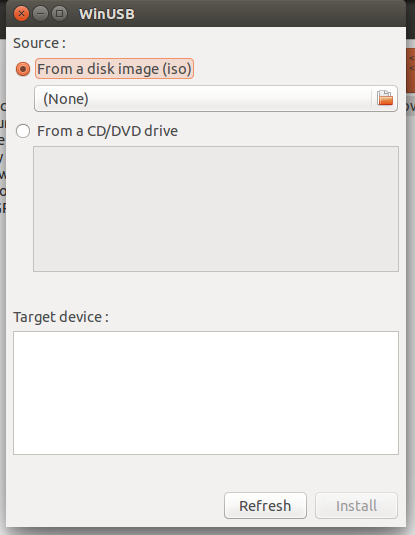
The WinUSB GUI is much easier to use than the WinUSB command line tool.


winusb gui screenshot


Thursday, June 11, 2015

[Ubuntu]: How to Join An Ubuntu Desktop Into An Active Directory Domain

How to Join An Ubuntu Desktop Into An Active Directory Domain


This guide explains how to join an Ubuntu Desktop machine into a Microsoft Active Directory Domain. This solution uses the realmd and the sssd service to achieve this task. Other solutions for the same task, are samba + winbind, and the Likewise tool, which provides a GUI along with the command line utilities. The reason I choose realmd + sssd, is because this solution is better suited for complicated Active Directory infrastructures and provides more customization options.
The following instructions have been tested on Ubuntu Desktop 14.04 but they will most likely work on later versions as well.

About realmd and sssd

The realmd service is developed by the freedesktop.org project as an abstraction layer on other authentication backends like winbind and sssd. The sssd service is developed by RedHat Inc and is one of the components of their FreeIPA suite. It can effectively replace winbind in several scenarios.

Assumptions

In this example, we will assume that our Active Directory domain is dom.example.int and we have two Domain Controllers in our infrastructure: dc1.dom.example.int and dc2.dom.example.int. Also let’s name the Ubuntu Machine TESTARENA.

Prerequisites

Install an Ubuntu Desktop 14.04 (32 or 64 bit) on a physical computer or a Virtual Machine and apply all updates. Don’t forget to set the TESTARENA hostname during the installation.
Make sure your Ubuntu Desktop machine has access to the Active Directory domain and the Domain Controllers:
dig -t SRV _ldap._tcp.dom.example.int | grep -A2 "ANSWER SECTION"
;; ANSWER SECTION:
_ldap._tcp.dom.example.int. 170 IN SRV 0 100 389 dc1.dom.example.int.
_ldap._tcp.dom.example.int. 170 IN SRV 0 100 389 dc2.dom.example.int.
We can see from the output above that there are indeed, two domain controllers, in our Active Directory Domain.
Ping the Domain Controllers, to ensure they are accessible:
fping dc1.dom.example.int dc2.dom.example.int
dc1.dom.example.int is alive
dc2.dom.example.int is alive
As you can see in the output, both domain controllers are accessible from our Ubuntu machine.

Install all necessary packages

sudo apt-get -y install realmd sssd sssd-tools samba-common krb5-user packagekit samba-common-bin samba-libs adcli ntp
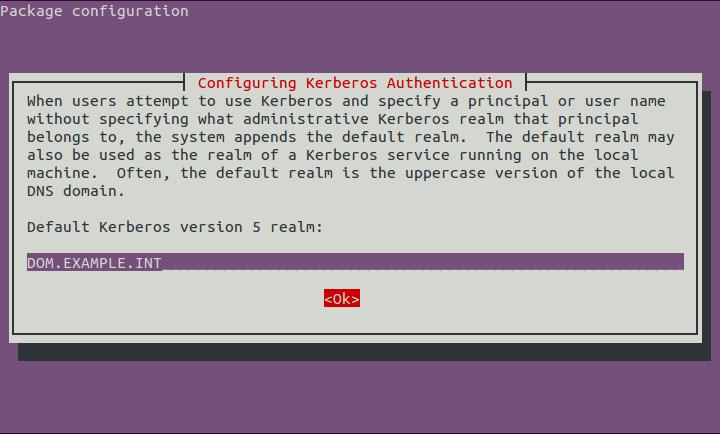
The Package Management subsystem will ask to to set your Default Kerberos version 5 realm. Type “DOM.EXAMPLE.INT”, select “ΟΚ” and press “Enter” when you see the following screen:
1
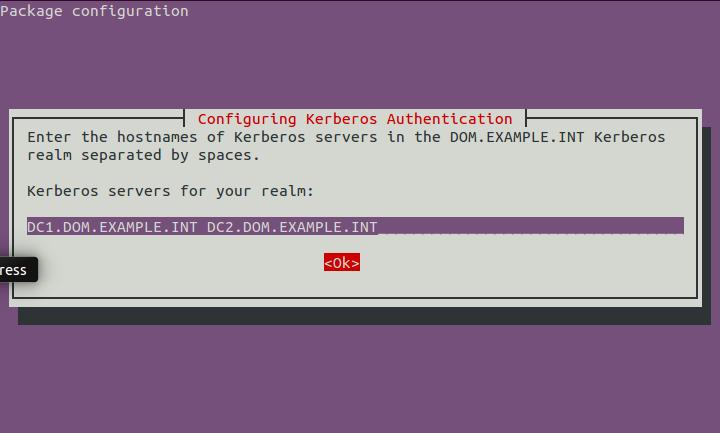
Next we will need to define our Domain Controllers as Kerberos Servers. Type “DC1.DOM.EXAMPLE.INT DC2.DOM.EXAMPLE.INT” (space separated), select “OK” and “Enter”:
2
Then set the Administrative Kerberos Server. Type “DC1.DOM.EXAMPLE.INT”, select “OK” and “Enter”:
3

Setup your ntp service to point to our domain timeservers

In a healthy Active Directory environment all systems must be in time synchronization with the domain controllers. The domain controllers in an Active Directory domain, also behave as ntp servers.
First edit the /etc/ntp.conf file. Comment out the preset timeservers and add our Domain Controllers instead:
...
#server 0.ubuntu.pool.ntp.org
#server 1.ubuntu.pool.ntp.org
#server 2.ubuntu.pool.ntp.org
#server 3.ubuntu.pool.ntp.org
server dc1.dom.example.int
server dc2.dom.example.int
# Use Ubuntu's ntp server as a fallback.
#server ntp.ubuntu.com
...
Then restart your ntp service:
sudo service ntp restart

Setting up realmd

Create a new /etc/realmd.conf file with the following settings:
[users]
default-home = /home/%D/%U
default-shell = /bin/bash
[active-directory]
default-client = sssd
os-name = Ubuntu Desktop Linux
os-version = 14.04
[service]
automatic-install = no
[dom.example.int]
fully-qualified-names = no
automatic-id-mapping = yes
user-principal = yes
manage-system = no
Explanation of the various options:
  • default-home: set the default homedir for each Active Directory User. In our example it will
    be something like /home/dom.example.int/domainuser.
  • default-shell: the default shell used by the users. bash is usually the preferred default shell.
  • default-client: we are using sssd in our scenario. winbind is also a possible option.
  • os-name: the operating system name as it will appear in our Active Directory.
  • os-version: the operating system version as it will appear in our Active Directory.
  • automatic-install: we want to prevent realmd to try to install its dependencies.
  • fully-qualified-names: this will allow users to use just their username instead of the combination of domain and username. For example we can use the username domainuser instead of DOM\domainuser or domainuser@dom.example.int. Note, however, that this could cause conflicts with local users, if they have the same username as a domain user.
  • automatic-id-mapping: this option will auto-generate the user and group ids (UID, GID) for newly created users, if set to yes.
  • user-principal: this will set the necessary attributes for the Ubuntu machine when it joins the domain.
  • manage-system: if you don’t want policies from the Active Directory environment to be applied on this machine, set this option to no.

Join the Ubuntu machime on the AD domain

Activate a new Kerberos ticket:
sudo kinit administrator@DOM.EXAMPLE.INT
Password for administrator@DOM.EXAMPLE.INT:
You will not see any output while you type the password. That’s normal. You can replace the administrator user with any other domain administrator or any user with domain join rights.
Add the Ubuntu machine in the domain:
sudo realm --verbose join dom.example.com \
--user-principal=TESTARENA/administrator@DOM.EXAMPLE.INT --unattended

Setting up sssd

When we use realmd to join the machine in the domain, it also creates the configuration of sssd in the /etc/sssd/sssd/conf file. Unfortunately realmd does not get everything right so we need to tweak the sssd configuration a bit.
Modify the access_provider = simple option in the /etc/sssd/sssd.conf file, as follows:
access_provider = ad
Restart the sssd service:
sudo service sssd restart

Setup homedir auto-creation for new users

Add the pam_mkhomedir pam module, as the last module in the /etc/pam.d/common-session file:
...
session required
pam_unix.so
session optional
pam_winbind.so
session optional
pam_sss.so
session optional
pam_systemd.so
session required
pam_mkhomedir.so skel=/etc/skel/ umask=0077
# end of pam-auth-update config

Check Active Directory users name resolution

Now let’s check if we can resolve the active directory users:
id domainuser
uid=54202865(domainuser) gid=54200513 groups=54200513
Setting up LightDM
LightDM provides the Ubuntu graphical login. Now we need to disable guest login (a very good practice in enterprise environments) and enable manual login (to let domain users to login). These steps are not unnecessary for headless machines (on a CLI-only Ubuntu Server for example).
We need to create the /etc/lightdm/lightdm.conf. This file does not usually exist on a fresh Ubuntu Desktop 14.04 installation, but you may want to keep a backup if it does.
Now put these lines in /etc/lightdm/lightdm.conf:
[SeatDefaults]
allow-guest=false
greeter-show-manual-login=true

Final Check

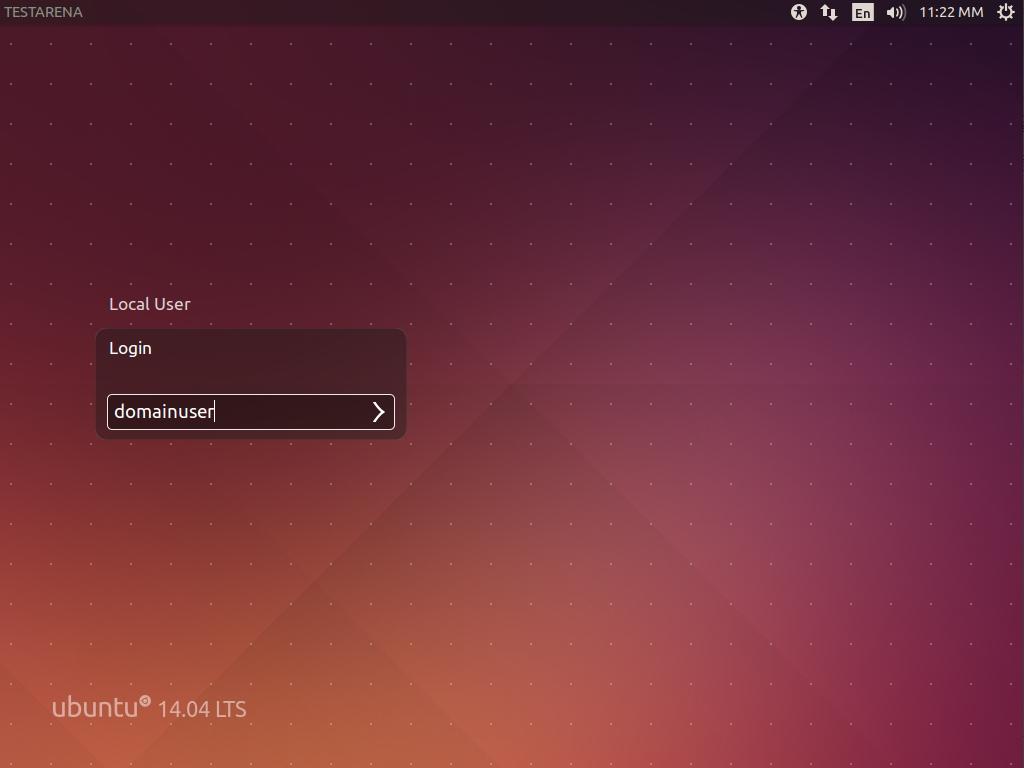
Restart the machine and try to Login using the Ubuntu graphical login. Use the “Login” option and enter your domain credentials:
4
In case it does not work as expected, check the following log files for errors:
  • /var/log/auth
  • /var/log/syslog
  • /var/log/sssd/*
References:


Friday, June 5, 2015

[Quick Tips]: 5 tips to improve your Linux desktop security

5 tips to improve your Linux desktop security

There are lots of Linux servers out there – sufficiently many that it's impossible to give the precise number, and difficult even to come up with a good approximation.
But we're unlikely to offend anyone if we say that at least 20%, probably 40%, and possibly more than 50% of the internet's servers run some flavour of Linux.
As a result, cybercrooks have learned how to hack into Linux servers on an industrial scale in order to steal both storage space and network bandwidth.
With these hacked servers, they push malware, spam, scams and phishing campaigns onto users worldwide.
Of course, the vast majority of the victims who get attacked or infected via compromised servers are running Windows, simply because the vast majority of end users are running Windows.
If you run a Linux desktop, life can be a lot quieter.
Part of that is being in a small minority, with Linux probably running on only about 2% of desktop computers worldwide.
Being in a small minority means you haven't yet attracted much attention from cybercriminals, who are making huge amounts of money from the Windows ecosystem already.
But is that enough to consider yourself safe?
No, it isn't.
Linux malware does exist and has occasionally spread extensively in the wild; Linux users do get phished; Linux laptops do get lost, or stolen or hacked; hard disks do get removed from Linux computers and sold without being wiped  – and any of these could put you, your privacy, or even your identity, at risk.
So here are five easy steps to enhance your Linux security.

1. Choose Full Disk Encryption (FDE)

No matter which operating system you are using, we recommend that you encrypt your entire hard disk.
If your laptop is lost or stolen, using a simple login password won't protect your data: a thief can just boot into Linux from a USB key and read all your data off without a password.
By encrypting your hard drive, you ensure your data remains secure, because the thief won't be able to read anything without the FDE password.
The advantage of FDE over encrypting just your home folder and the files in it is that you no longer have to worry about temporary files, swap files or other directories where important files might end up without you realising it.
On any fairly recent computer, you're unlikely to notice, or even to be able to measure, a slowdown in day-to-day use due to encrypting everything.
On Ubuntu and Fedora, as in many other Linux distributions (distros for short), full disk encryption is available right at install time.
You can easily enable it during the installation by selecting Encrypt the new Ubuntu installation for security:

And, of course, remember to pick a proper password!

2. Keep your software up-to-date

Again, no matter which operating system you are using, you should always keep both your operating system and your applications, such as web browsers, PDF readers and video players, up to date.
Most Linux distros make this easy.
On Ubuntu, by default, security updates are installed automatically.
You can double-check this at System Settings | Software & Updates | Updates.
Make sure the Important security updates option is turned on:
Securing the Linux desktop

3. Learn how to use Linux's firewall

The Linux kernel includes a firewall component called iptables, which gives you a powerful way to manage network traffic and keep out many sorts of cyberattack.
On Ubuntu you will also have an application called Uncomplicated Firewall (UFW), a frontend program that simplifies setting up iptables.
By default UFW is disabled, but you can turn it on from a command prompt by doing:
   $ sudo ufw enable
   Password: 
   
   Firewall is active and enabled on system startup
   $
To learn more about iptables and what it can do, you might also want to try a graphical configuration tool such as GUFW or UFW Frontends.
On Fedora you will find FirewallD, an alternative firewall management toolkit that is enabled by default.
A graphical user interface for FirewallD, called firewall-config, is available; you can install it from a command prompt with:
   $ yum install firewall-config

4. Tighten up security in your browser

The browser is the way in for many current cyberthreats, whether you use Mozilla Firefox, Google Chrome, Opera or another browser.
Many free extensions are available to improve the security of your browser, and your privacy as well. Among others, you may want to consider the following:

5. Use anti-virus software

We saved this one until last because it has long been a bone of contention with a vocal minority of Linux faithful.
Some people will tell you that it's pointless installing an anti-virus software on a Linux-based operating system.
Half of the argument is that most of the malware you will detect on a Linux computer will be for Windows, and why should you be responsible for that?
The obvious answer is, "Why not? What if you pass an infected file onto someone else and thus make yourself part of the problem rather than the solution?"
The other half of the argument is that malware on Linux desktops is rare enough that you might as well pretend it doesn't exist at all.
My personal opinion is that if you feel safe just because you think the risk of a breach is low, then attackers have already outsmarted you.

Sophos Linux Protection

We've just made Sophos Anti-Virus for Linux free for desktops and servers at home and at work.
You can find out more about it on the Sophos website.


Wednesday, May 27, 2015

[Quick Install]: eXo – An Open Source Enterprise Collaboration Platform

eXo – An Open Source Enterprise Collaboration Platform

exo platform

About eXo platform

Nowadays, Social platforms are making the biggest impact in both professional and personal life of all. We’re all virtually connected with each other using Social media, such as Facebook, Twitter, G+, and Linkedin etc. Whether you’re an entrepreneur, a business man, a student or whoever, the Social platform takes most part in your self or business promotion. Using social media, anyone can easily collaborate with anyone and spread their business promotions, ideas, features or whatever to the world. So, implementing your own social platform for your oraganization is a good practise to communicate globally. There are may collaboration tools out there. Today, In this tutorial, we are going to discuss such kind of collaboration tool called ‘eXo platform’.
eXo is an open source social-collaboration platform for enterprise, and as well as for small medium organizations too.  It has rich collaboration features, such as Wikis, Forums, Calendars, web contents and documents management capabilities along with activity streams, social networking and workspaces. You can have your own intranet, Social platform, CMS, DMS, Forum, Portal, FAQ section for your organization. All products are bundled in this single platform.
It is full featured and extensible platform with professional and nice design. The platform has been carefully designed to instantly engage users. It runs on the Cloud or within the trusted security of an enterprise platform and is highly customizable to adapt when your needs evolve. eXo Platform has inherited strong document management capabilities from its portal platform roots and thus is also a fantastic platform for content-centric applications. Also, eXo has many useful add-ons to bring users new capabilities like chat application, blog management and Google Drive extensions.
eXo integrates with your enterprise directory, such as Active Directory, and Open LDAP etc, It also works with your single sign-on system with support of CAS, JOSSO, OpenSSO and SAML. eXo Platform is built using open standards such as Java EE, WEBDAV, CalDAV, JCR and CMIS to maximize its interoperability.

Features

eXo platform includes the following list of features.
  • Social Network ;
  • Wiki ;
  • Forum ;
  • Calendar ;
  • Document Management ;
  • Web Content Management ;
  • Portal ;
  • FAQ ;
  • Events ;
  • Tasks ;
  • Portal ;
  • Dashboard ;
  • Standards compliance – JCR, CMIS, OpenSocial, WEBDAV, FTP, iCal, JEE, Portlets ;
  • Enterprise Integration – single sign on (CAS, JOSSO, OpenSSO, Kerberos / SPNEGO, SAML), LDAP & Active Directory ;
  • Databases – MySQL, Postgres, Oracle, MS SQLServer, Sybase, DB2 ;
  • App Servers – Tomcat ;
  • JVM –  Oracle Java 6 and 7, OpenJDK 6 and 7, IBM Java 6 & 7 ;
  • And many.

Install eXo

eXo Installation is not difficult. The eXo script will take care of everything and install all required components. Just run the script and sit back and relax.
The minimum system requirements to run eXo platform:
  • CPU: 3 GHz Multi-core recommended ;
  • Memory: 4GB of RAM (8GB recommended ;
  • Disk: 2GB (depending of the amount of data) ;
  • OS: Linux or Windows ;
  • JDK: Java 7 (Set the JAVA_HOME environment variable);
  • Browser: Google Chrome 25+, Firefox 19+ or Internet Explorer 9+;
  • The eXo server will run on port 8080, make sure this port is not currently in use and allow it thorough your firewall/router.
First, update the system and install Java.

On Ubuntu/Debian:

sudo apt-get update
sudo apt-get install openjdk-7-jre-headless wget unzip zip mc -y

On CentOS/RHEL:

yum update -y
yum install java-1.7.0-openjdk wget unzip zip mc -y
Download the latest version from here. As of writing this, the latest version was 4.2.0-RC1.
wget http://sourceforge.net/projects/exo/files/Platform4.2/eXo-Platform-community-4.2.0-RC1.zip
Extract the downloaded zip file using command:
unzip eXo-Platform-community-4.2.0-RC1.zip
This will extract the all contents to a folder called platform-community-4.2.0-RC1.
Change to that directory using command:
cd platform-community-4.2.0-RC1/
Now, start the eXo platform using the following command.
./start_eXo.sh
In case, you wanted to start eXo Platform as a background process, run:
./start_eXo.sh --backgroud
This will take a while. Wait for the server to start. After a couple of minutes you will see message like below:
2015-05-21 17:54:19,576 | INFO  | Server startup in 979365 ms [org.apache.catalina.startup.Catalina<main>]

Access eXo Web console

Open up your web browser and navigate to: http://ip-address:8080/. You should see the following screen.
First you have to create a primary account and setup password for the root user. After entering all details, clickSubmit.
Mozilla Firefox_002
Now you will be prompted to create additional users/groups. This is optional, you can create users/groups later from administration dashboard. Click on the Start button.
Mozilla Firefox_003
Now you will be redirected to the Administration dashboard.
Home Page - Mozilla Firefox_004
From here, you can create users/groups, Create additional websites

Stopping eXo Server

If you have started eXo Platform in console (without –background option), just press Ctrl+C to stop it.
In case it is running as background process, you can use the stop_eXo script:
./stop_eXo.sh
That’s it. For more details about eXo installation, configuration, and usage, refer the official documentation.
Cheers!
Reference: